
Fixing Weak Rooms & Blackspots
Use this when the broadband looks fine near the router but a bedroom, office or back room crawls. It covers signal path, distance, interference and whether you need a mesh node, extender or wired access point.
Diagnose weak Wi‑Fi rooms, router placement, mesh Wi‑Fi, broadband security, antivirus, VPN privacy, Wi‑Fi 7 and home networking hardware before spending money on a new broadband package or router.
Home network pillar guide
A fast full fibre line can still feel slow if your router is hidden, the signal has to pass through thick brick walls, or an upstairs room is outside clean Wi‑Fi range. This hub helps you diagnose whether the fault is the broadband line, the router, the room layout, the Wi‑Fi standard or the hardware you are using.
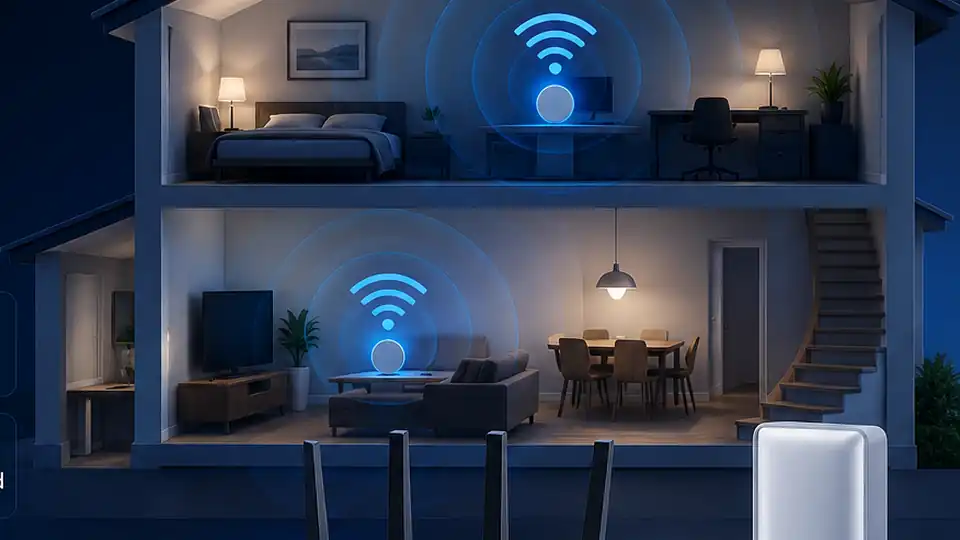
1-minute diagnostic check
Before buying a router, mesh kit or faster package, compare the cleanest possible result with the room where the problem happens. This stops you paying for headline speed when the real bottleneck is router placement, wireless interference or wall material.
Page index
Jump straight to the diagnostic area that matches the problem, then return here from any lower section on mobile.
Problem diagnosis
Start with the symptom you can see: one room is slow, upstairs drops out, the router is badly placed, or walls are blocking the signal. These guides focus on practical UK home layouts such as brick internal walls, foil insulation, TV cabinets, loft rooms and garden offices.
Use this when the broadband looks fine near the router but a bedroom, office or back room crawls. It covers signal path, distance, interference and whether you need a mesh node, extender or wired access point.

Use this when upstairs bedrooms, loft rooms or converted spaces get poor signal. Floors, pipework, insulation and poor router height can reduce speed even when the router is powerful.

Use this before spending money. A router low on the floor, boxed behind a TV, next to metal or trapped near the master socket can make a fast broadband line feel unreliable.

Use this when the router is nearby but one wall, extension, chimney breast, foil-backed insulation or appliance appears to kill signal. Material matters more than distance in many homes.
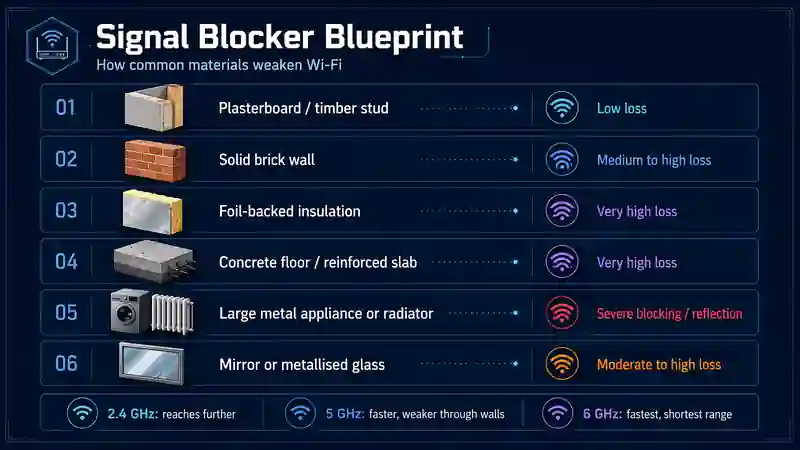
Signal blocker blueprint
Use this as the quick visual reference for solid brick, foil-backed insulation, concrete floors and reflective objects before choosing mesh, extenders or a new router.
Wi‑Fi technology
New Wi‑Fi numbers do not automatically fix coverage. The right upgrade depends on device support, router ports, interference, room layout and whether the problem is speed, latency or reliability.

Compare wireless generations for range, capacity, device support and real speed. This is the broad starting point if you do not know which standard your router or phone supports.
Use this for a tighter upgrade decision between current mainstream routers and newer premium hardware. It explains where Wi‑Fi 7 helps and where Wi‑Fi 6 is still enough.
Gigabit homes also need suitable Ethernet ports, switches, device radios and placement. A premium Wi‑Fi 7 label will not remove a 1GbE bottleneck or a blocked signal path.
For gaming, the headline download speed matters less than jitter, packet loss, bufferbloat and wireless stability. Use this when lag appears over Wi‑Fi but Ethernet feels cleaner.
Wi‑Fi 8 is about reliability, coordination and latency improvements more than another simple speed headline. Use this for future-proofing questions rather than urgent home fixes.
Wired Ethernet gives the clearest view of the broadband line. Use it as a baseline when wireless results are confusing or when gaming, work calls and streaming behave differently.
Privacy & secure routing
A VPN can encrypt the route from your device or router to a VPN server, but it can also change speed, ping, DNS behaviour and the public IP address seen by websites. Use the VPN guide to separate privacy benefits from Wi‑Fi problems and to test performance before committing the whole home network to a tunnel.
Learn where the encrypted tunnel starts and ends, what happens to your public IP address, what the VPN provider can influence and why a VPN is not the same as anonymity.

Compare the same connection with the VPN off and on, then isolate server distance, protocol choice, router or device processing and poor routing without confusing them with weak Wi‑Fi.
Choose whether to run the VPN app on selected phones and laptops or route compatible household devices through a VPN-enabled router, with the performance and troubleshooting trade-offs explained.
Broadband security
Router security and strong Wi-Fi are only part of the picture. Malware, ransomware, phishing and scam sites target the devices and people using the connection, so endpoint protection belongs naturally alongside VPNs, routers and home-network configuration.
Understand what modern antivirus actually protects against, why ransomware backups still matter and when Windows Defender may already be enough.
Compare LinkSpeed's current recommendations from Bitdefender, Norton, ESET, McAfee and F-Secure, including device coverage, VPN features and purchase considerations.
A VPN encrypts network traffic; antivirus protects the device from malicious files, websites and behaviour. Learn when you need one, the other or both.
Hardware upgrades
Hardware should solve the bottleneck you found during testing. Mesh, extenders, access points, routers, switches and cables all solve different problems, and choosing the wrong upgrade can waste money or add latency.

Mesh is usually the better whole-home coverage fix when several rooms are weak or upstairs speeds collapse. It is not just a booster: the nodes are designed to work together under one network.

Extenders can be useful for one small weak area, but placement is critical. Put one in the dead zone and it only repeats a bad signal; place it halfway from the router to the weak room.
Use this after Ethernet and bufferbloat tests show that lag is caused by router queues, weak QoS, poor Wi‑Fi handling or old ISP kit rather than the broadband line itself.
Hardware picker
Use this quick matrix after your two-location test. It gives useful answers on the hub page itself, while the deeper guides handle the full explanation.
| Symptom | Likely bottleneck | Best next fix |
|---|---|---|
| One room is slow, but nearby rooms are fine | Signal path, wall material, local interference or a poorly placed router. | Move the router, adjust the signal path, use a wired access point, or use an extender only if there is still a strong signal halfway to the room. |
| Several rooms or upstairs areas are weak | One router cannot cover the home cleanly, especially through floors, brick or foil-backed insulation. | Use mesh Wi‑Fi or wired access points. One traditional booster often struggles when the whole home has poor coverage. |
| Speeds are good but games still lag | Jitter, packet loss, bufferbloat, Wi‑Fi retransmissions or router queueing. | Test Ethernet, check jitter and bufferbloat, then consider a lower-latency gaming router with SQM or strong QoS or better Wi‑Fi placement. |
| Full fibre is fast near the router but not on devices | Device Wi‑Fi generation, router ports, Ethernet cables, switches or a 1GbE ceiling. | Check device Wi‑Fi generation, router LAN/WAN ports, Ethernet cables, switches and whether a 1GbE port is capping a faster package. |
Interactive check
Enter your package speed and the weakest device, router or port limit you are relying on. The result updates instantly.
Affiliate hardware reviews
Product links sit after the diagnostic advice so the page remains an informational hub first. Use the buying guides only when tests show that fixed-line router, mesh, Wi-Fi or 5G gateway hardware is the likely bottleneck.
Best when several rooms are weak, upstairs speeds collapse, or one router cannot cover the whole home cleanly.
Best when your broadband is fast but your old router, ports or wireless standard are holding back newer devices.
Best when mobile broadband is viable but the supplied hub, indoor signal path, antenna support or Ethernet options limit the connection.
Best when downloads look fine but ping, jitter, bufferbloat or Wi‑Fi stability still make games feel laggy.
Best when you need a practical upgrade for weak coverage or old ISP kit without spending premium mesh money.
Best when full fibre is installed but 1GbE ports, old switches, poor placement or outdated Wi‑Fi limit real speeds.
Use the fixed-line guide for routers and mesh, or the 5G guide for SIM-based gateways, external-antenna support and portable backup hardware.
Affiliate disclosure: As an Amazon Associate, LinkSpeed may earn from qualifying purchases on eligible product review pages. Always test your connection first so you buy hardware for the real problem.
FAQs
Run one test close to the router and another in the weak room. If the router-side result is strong but the room result drops sharply, the bottleneck is probably Wi‑Fi coverage, router placement, walls, mesh placement or device capability rather than the broadband line itself.
Mesh Wi‑Fi is usually better for whole-home coverage across several rooms because the nodes work as one system. A Wi‑Fi extender or booster can still help a small dead spot, but it must be placed within a strong existing signal, not inside the dead zone.
Yes. Brick, concrete, metal, foil-backed insulation, mirrors, appliances and water tanks can weaken Wi‑Fi. If one room is slow but nearby rooms are fine, the signal path and wall material are often more important than the broadband package speed.
Not always. Wi‑Fi 7 can help newer devices in busy homes, but Ethernet, good router placement, multi-gig ports, Wi‑Fi 6 or Wi‑Fi 6E may already be enough. Test wired and close-range speeds before buying a premium Wi‑Fi 7 router.
Only after testing. If wired speeds near the router are poor, check the broadband line or provider first. If wired speeds are good but wireless rooms are slow, a router placement change, mesh system, access point or newer router may be the better fix.