Upload speed
Video calls, file sharing, cloud backups and live collaboration rely on upstream capacity.
Open upload speed guideRemote work needs stable upload speed, low jitter, reliable video calls, VPN compatibility, strong Wi‑Fi, useful support and a backup plan that actually works.
Home office broadband guide
Remote work stresses upload, jitter, packet loss, Wi‑Fi coverage, VPN routing and provider support. A fast download package is not enough if calls freeze when cloud sync starts or the backup connection breaks your corporate VPN.
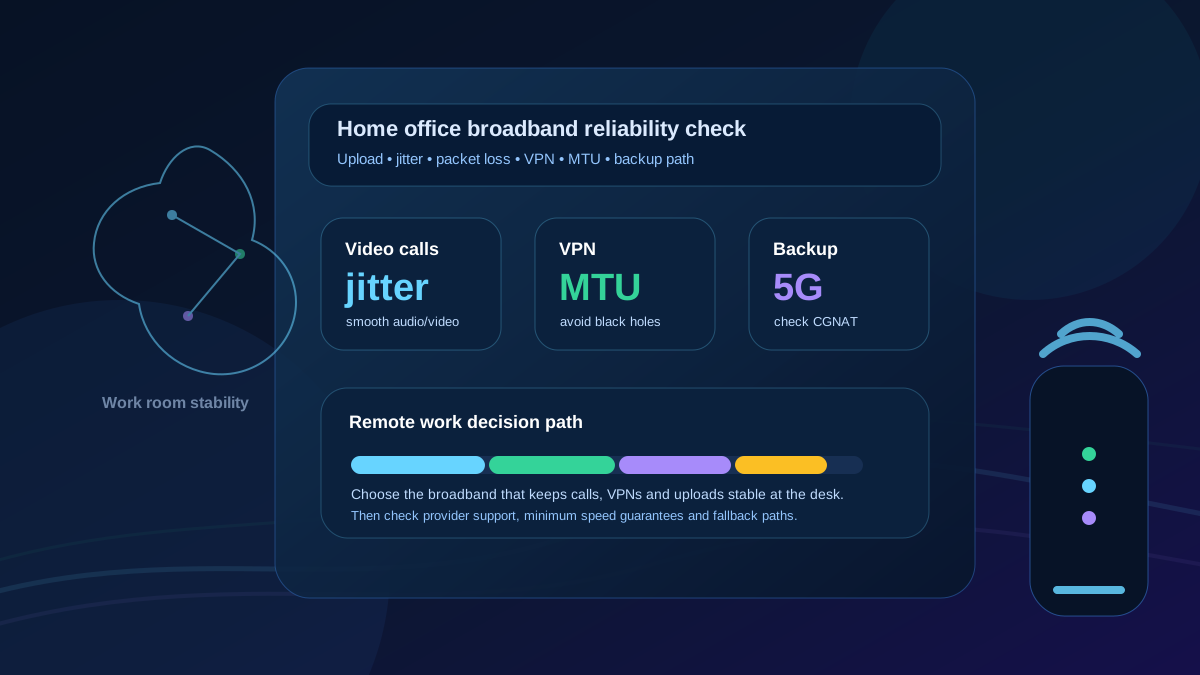
Quick verdict
For most home workers, the best option is reliable FTTP with strong upload, low jitter, 0% packet loss, Ethernet or high-quality Wi‑Fi at the desk, clear minimum speed information and a fallback route that has been tested with your work VPN.
A consistent 150–500 Mbps full-fibre package with usable upload can be better for work than a faster package with weak Wi‑Fi, poor loaded latency or unhelpful support. Test the work room, not just the router, before switching.
Before switching
A home-office fault can come from the broadband line, router, Wi‑Fi coverage, VPN, cloud sync, smart cameras or another device filling the upload. Test beside the router, in your work room and over Ethernet where possible.
Video calls, file sharing, cloud backups and live collaboration rely on upstream capacity.
Open upload speed guideUneven delay or dropped packets cause call freezes, remote desktop stutter and VPN instability.
Open packet loss guideIf calls fail when someone uploads, streams or downloads, router queueing may be the issue.
Run loaded latency testEthernet removes room-by-room wireless variables and is the cleanest way to test the line.
Compare Ethernet vs Wi‑FiProvider shortlist
Use this as an internal LinkSpeed shortlist rather than sending users straight to provider front pages. Availability, speed-code rights, support and router quality vary by package and address.
| Provider or network | Best fit for remote work | Support / guarantee check | Technical watch-out | Internal next step |
|---|---|---|---|---|
| Zen Internet | Support-focused home workers who value service stability over the cheapest headline deal. | Check the minimum guaranteed speed, fault process and whether a business plan gives better support expectations. | May cost more than budget providers. | Open Zen speed test page |
| BT / EE | Openreach FTTP coverage, mainstream router options and national support footprint. | Check the point-of-sale minimum speed guarantee and speed-code exit process if the line underperforms. | Premium router or backup features may sit on higher-priced packages. | Open BT speed test page / EE |
| Sky Broadband | Homes already using Sky services or comparing mainstream FTTP bundles. | Check the minimum guaranteed speed, support route and any Wi‑Fi guarantee details before ordering. | Bundled TV pricing can obscure broadband value. | Open Sky speed test page |
| Plusnet | Value-focused Openreach full-fibre buyers who still want a mainstream support route. | Check the guaranteed speed figure and whether the simpler router is enough for the work room. | Feature set can be lighter than premium brands. | Open Plusnet speed test page |
| Vodafone Full Fibre | Competitive FTTP pricing and higher-tier router or backup features. | Confirm current minimum speed terms, support route, Pro features and price-rise schedule at checkout. | Router tier, support experience and CGNAT/static IP needs should be checked if you rely on VPNs. | Open Vodafone speed test page |
| Virgin Media | Homes where Virgin is the fastest fixed-line option and FTTP alternatives are limited. | Check the minimum speed guarantee and fault repair route for the exact package. | Upload ratio and loaded latency under household load are critical for video calls. | Open Virgin Media speed test page |
| Hyperoptic / Community Fibre | Urban flats, dense city coverage and strong upload options where available. | Check whether the provider offers a formal minimum speed guarantee, support hours and business/residential differences. | Coverage can be building or postcode specific. | Hyperoptic / Community Fibre |
| Gigaclear / YouFibre / Brsk | Local full-fibre alternatives, rural FTTP and altnet areas with strong upload options. | Check support route, static IP / CGNAT policy, install process and minimum speed terms before switching. | Excellent where live, but coverage and support routes are local. | Gigaclear / YouFibre / Brsk |
| TalkTalk / NOW / budget routes | Lower monthly cost when the work setup is not business critical. | Check guaranteed speed, router spec, contract term, support and price rises carefully. | A cheap line with weak support can be expensive if it disrupts work. | TalkTalk / NOW |
Minimum speed guarantee check: under Ofcom's broadband speeds code, signed-up providers must give speed information before sale and explain what happens if speeds stay below the guaranteed minimum. Treat this as a consumer-rights backstop, not a business SLA, and always keep your own test evidence.
Task-to-metric matrix
This replaces duplicate “need” and “spec” sections with one high-density decision matrix.
| Remote-work task | Metric trigger | What good looks like | Common failure mode | Useful LinkSpeed route |
|---|---|---|---|---|
| Live video calls | Upload headroom, low jitter and 0% packet loss. | Enough upload for simultaneous calls, stable Wi‑Fi or Ethernet, and low loaded latency while the home is busy. | Audio breaks up when cloud sync, CCTV upload or another call starts. | Run loaded latency test |
| Corporate VPN and remote desktop | Packet loss, route stability, MTU and NAT compatibility. | Ethernet at the desk, stable path to the VPN gateway and no repeated loss on wired tests. | VPN connects then stalls, internal drives freeze, or remote desktop lags despite good speed. | Read packet loss guide |
| Large file uploads | Upload speed and symmetrical-vs-asymmetrical profile. | 50–100 Mbps+ upload for regular large files, or symmetrical altnet full fibre for creator workflows. | A 500 Mbps download package with only modest upload feels slow when sending files. | Compare full fibre |
| Two home workers | Concurrent upload, router queueing and Wi‑Fi capacity. | Enough upload for two calls plus browsing, cloud docs and device updates, with spare headroom. | One person's call breaks when the other shares screen or uploads a file. | Run bufferbloat test |
| Garden office or spare room | Wi‑Fi signal, Ethernet backhaul and room placement. | Ethernet, properly placed mesh, or a dedicated access point that reaches the desk reliably. | Router speed is fine, but the work room has weak signal or high jitter. | Improve Wi‑Fi speed |
| Business-critical days | Backup path, mobile signal, CGNAT and VPN compatibility. | A tested hotspot or 4G/5G router that can connect to your work VPN before you need it. | Backup internet works for web browsing but breaks Cisco, GlobalProtect or remote access. | Read 5G lag guide |
VPN and backup path
A 4G or 5G backup route is useful only if it can run your actual work tools. Test it with your corporate VPN, intranet, file shares, Teams or Zoom before relying on it during an outage.
Many mobile connections use Carrier‑Grade NAT on consumer APNs. Your router may not receive a unique public IPv4 address, and some corporate security gateways reject or struggle with shared NAT handshakes.
Fix: ask the mobile provider about a business SIM, static/public IP option or alternative APN. Ask your IT team whether the VPN can use TCP encapsulation instead of UDP if the mobile NAT path blocks tunnels.
Mobile networks and VPN encryption add overhead. If a laptop sends large packets through a smaller mobile path, some apps can appear to “black hole”: chat works, but intranet pages, file shares or video calls stall.
Fix: ask IT before changing a managed work device. For a 5G backup running a secure corporate VPN, testing an MTU around 1300–1350 bytes can avoid fragmentation.
netsh interface ipv4 set subinterface "Wi-Fi" mtu=1300 store=persistentKeep users inside the LinkSpeed route
Use internal LinkSpeed pages first, then move to provider ordering pages once the address, speed requirement and technical risks are clear.
Switching decision
FTTP is usually the best starting point for stable upload, speed and long-term reliability where it is available.
Do not choose purely on download speed or a headline discount if calls, backups and file uploads matter.
A clean router result does not guarantee good performance at your desk, especially in garden offices or upstairs rooms.
Read contract terms, setup fees, price rises, minimum speed guarantee wording and exit rights before ordering.
Do not assume a mobile hotspot will run your VPN. Test CGNAT, MTU and VPN behaviour before an important meeting.
The best option is usually reliable full fibre with enough upload speed, low jitter, no repeated packet loss, stable desk coverage and support that can handle faults quickly. The best provider still depends on your address.
One worker can often manage with modest upload, but two or more calls, cloud backups, VPNs and file uploads benefit from stronger upstream headroom. Compare upload speed as carefully as download speed.
Yes, but test it first. Mobile backup can be affected by CGNAT, signal changes, jitter, mast load and MTU/VPN issues. It may browse normally while corporate systems fail.
Video calls can freeze because of low upload speed, high jitter, packet loss, weak Wi‑Fi, router congestion, VPN routing or loaded latency when other devices are active.
Ethernet is usually the most reliable option for a fixed work desk. It removes many Wi‑Fi variables and helps show whether the broadband line itself is stable.