Sky over Openreach
Depending on the address, the available service may be part-fibre FTTC or full fibre FTTP. Check the estimated speed and whether an Openreach ONT is used before comparing the package with another Openreach-based provider.
Check whether Sky is available at your address, choose the right performance tier, or diagnose Sky Stream, Sky Q, Sky Max Hub, Wi-Fi and line faults without repeating the same checks.
Sky broadband checker
Start with the route that matches your intent. New customers should confirm the access network and package available at the address. Existing customers should match the symptom to one test before changing the hub, TV settings or provider.

Check your renewal price
If your Sky minimum term has ended, compare renewal pricing with Sky's current offers and alternative full-fibre networks available at your address before agreeing a new term.
Thinking of joining
Sky can sell broadband over different wholesale access networks. Do not assume that two nearby addresses receive the same network, speed tier or upload profile.
Depending on the address, the available service may be part-fibre FTTC or full fibre FTTP. Check the estimated speed and whether an Openreach ONT is used before comparing the package with another Openreach-based provider.
Sky also sells full-fibre services over CityFibre in eligible areas. The physical access network differs, but the retail speed, upload profile, router and support arrangement still depend on the actual Sky offer at the address.
Record the access network, guaranteed or estimated speed, upload rate, contract length, router supplied and any TV-package conditions. Compare like for like rather than choosing only by the largest download number.
Check local broadband availability
Use the LinkSpeed checker to compare the address-level options first, then open Sky's official site for the live package and contract details.
Package selection
Package names and prices change. Use the household workload and the address-level upload profile to decide which available tier is appropriate.
| Household use | What to prioritise | What to verify before ordering |
|---|---|---|
| Browsing and one HD stream | A stable entry-level fibre service may be sufficient. | Minimum guarantee, Wi-Fi coverage and the total bundle price after introductory discounts. |
| Home working and several simultaneous streams | Spare download capacity, reliable upload and low loaded latency. | The actual upload profile, router capabilities and whether work traffic must pass through a VPN. |
| Sky Stream, UHD or Whole Home | Enough sustained capacity at every puck or TV, not only beside the hub. | Sky currently recommends at least 25 Mbps for Stream, with higher minimums for UHD and extra pucks. Leave capacity for other devices. |
| Gaming, cloud backup or content creation | Upload headroom, stable ping and queue management matter as much as download speed. | Upload rate, Ethernet options, loaded-latency behaviour and whether another local full-fibre provider offers a better fit. |
Current Sky customer
This table replaces the repeated symptom lists, optimisation reminders, evidence checklist and fault-pattern sections from the previous layout.
| Current symptom | Likely fault layer | Immediate diagnostic action | When switching becomes relevant |
|---|---|---|---|
| Sky Stream freezes during live sport or when another device uploads | Loaded latency, upload contention or weak TV-room Wi-Fi. | Run the LinkSpeed Bufferbloat Test, then compare the puck over Ethernet or beside the hub. | Only after wired tests remain unstable and Sky cannot resolve the external path or supplied-router problem. |
| Sky Stream shows Loading or Checking your status | Device wake-up, account verification, firmware or local connection. | Use the Sky Stream recovery sequence before treating it as a broadband-speed fault. | Not a switching trigger unless several devices and independent services also fail on wired broadband. |
| Sky Q Mini boxes disconnect overnight or before 5:45am | Sky Q Eco standby or local Q mesh connectivity. | Compare Active or None standby and retest the same early-morning period. | Usually a local Sky Q configuration issue, not a reason to switch broadband. |
| Only one room or TV device is poor | Room coverage, interference, mesh placement or the device radio. | Compare Ethernet, same-room Wi-Fi and the normal viewing position using the Wi-Fi isolation guide. | Compare alternatives only if a replacement router or mesh package is part of the value decision. |
| A safe VPN, work tool, game launcher or site fails while browsing works | Sky Shield, parental filtering, DNS or a route-specific problem. | Temporarily change the relevant Shield setting, retest the exact service and restore the protection afterwards. | Consider another provider only when the restriction is repeatable, policy-compliant and Sky cannot provide a usable route. |
| Wired speed is repeatedly below the line estimate | ONT, cable, line profile, wholesale access or provider-side congestion. | Bypass switches and powerline adapters, test directly at the hub or ONT path, and record quiet-time and busy-time results. | Strong switching trigger when the contract is ending and Sky cannot restore the expected wired performance. |
| Sky hub shows amber, red or no internet | Startup, authentication, ONT/DSL connection or wider service fault. | Use the hub-light guide, check the physical cable and open Sky's official service status. | Escalate to Sky first. Switching will not repair an unresolved physical fault immediately. |
Apply the matched fix
Open only the section that matches the diagnostic result. This avoids repeating generic restart and Wi-Fi advice throughout the page.
Confirm the pattern: compare a quiet-network stream with the same programme while uploads or downloads are active. Test the puck over Ethernet where possible.
For buffering: pause console updates, cloud backup and CCTV uploads. Run the bufferbloat test and the packet-loss test. Raw speed can look healthy while delay under load or Wi-Fi loss empties the stream buffer.
For Loading or Checking your status: open Settings → Start up and standby and turn on Networked Standby Mode where that option appears. Menu wording can vary by software version. Restart the puck at the mains, refresh account verification and use the recovery reset only after normal restarts fail.
Confirm the timing: Eco mode enters a deeper low-power state overnight. If a Mini loses connectivity before 5:45am, compare Active or None standby through Settings → Setup → Preferences → Standby mode.
Confirm the local mesh: if a new home mesh improved phones but Q Minis still fail, connect the main Q box and Minis by Ethernet where practical and reconnect one box at a time.
After a Sky Max or Gigafast+ Hub upgrade: the hub normally uses WPA3-T, which is designed to let many WPA2 devices connect. Do not assume every Sky Q dropout is a WPA3 fault. Reconnect the main Q box and Minis, compare Ethernet where practical, and only when the problem began with the hub change and remains limited to the Q equipment, run a temporary WPA2 compatibility test in My Sky → Broadband → WiFi Settings → Advanced settings → WiFi security level. Restore WPA3-T if the test makes no difference.
Do not confuse WPS with an outage: a flashing green WPS state is pairing activity rather than proof that the broadband line is down.
Confirmed when: one safe service fails on Sky broadband but works on mobile data, while ordinary browsing remains healthy.
Do this: temporarily change only the relevant Broadband Shield, Safe Search or parental-control category, restart the affected app and retest. Restore the protection level afterwards.
Look for a filtering clue: if a page opens but its images, attachments, launcher downloads or embedded content fail, filtering or DNS classification may be blocking a supporting content host rather than the main website.
Check older-device Wi-Fi compatibility separately: Sky Max and Gigafast+ Hubs normally use WPA3-T, which combines WPA3 security with WPA2 compatibility. If one older printer, smart-home device or laptop cannot connect or repeatedly drops, update that device first. If compatibility remains the confirmed cause, use My Sky → Broadband → WiFi Settings → Advanced settings → WiFi security level to test WPA2, then restore WPA3-T when possible.
Escalate correctly: workplace VPN changes may require the employer's IT team. Do not disable company security controls or expose devices with unnecessary port forwarding.
Confirmed when: multiple devices and services perform poorly over direct Ethernet, with background traffic paused.
Do this: replace the test cable, bypass powerline adapters and extra switches, then run the LinkSpeed Speed Test from the same wired device during quiet and busy periods.
Check the Full Fibre ONT: on an Openreach FTTP connection, a solid green PON light with LOS off means the optical link is working. A red LOS light, or no stable PON light after restart, points to the fibre or activation path rather than room Wi-Fi. Do not unplug the thin fibre cable.
Retest: use the same device and endpoint. Give Sky timestamps, wired speed, packet loss, hub-light state and the exact PON, LOS and Ethernet-port states where an ONT is installed.
| Light state | What it usually means | Most useful action |
|---|---|---|
| Solid white or healthy green indicators | The hub is online and authenticated. | If one Stream or Q device still fails, focus on that device, Wi-Fi path, Shield or loaded latency. |
| Flashing amber or orange | The hub is starting or trying to establish the external connection. | Allow startup time, then check the ONT Ethernet or DSL cable and service status if it persists. |
| Flashing green WPS | Device pairing is active. | Complete or cancel pairing before diagnosing the line. |
| Red, no internet or repeated loss of the online state | The hub cannot maintain the broadband path or service session. | Check ONT lights and cables, restart the ONT before the hub on full fibre, then contact Sky if the state returns. |
Openreach ONT: PON solid green and LOS off |
The optical link is working and the ONT is recognised by the fibre network. | Check the Ethernet cable between the ONT and Sky Hub. If LOS is red or PON will not settle, contact Sky rather than repeatedly resetting Wi-Fi. |
Escalate or switch
Open Sky's official Broadband & Talk service status before changing router, Stream or Shield settings. A known external incident can make local changes misleading.
Cannot fix it or out of contract?
Use a non-floating comparison route so it remains visible without covering troubleshooting content on mobile.
Focused answers
These answers match the FAQ structured data in the page head.
Sky can use different wholesale access networks depending on the property. Run the address checker to confirm the actual network, download and upload offer.
Fast download speed does not prove stable TV-room Wi-Fi, low packet loss or low delay while the connection is busy. Compare Ethernet and run loaded-latency tests.
Sky currently recommends at least 25 Mbps, with higher minimums for UHD and additional pucks. Leave extra capacity for other household devices.
Filtering is worth testing when only one safe service fails. Change one relevant setting temporarily, retest and restore the protection afterwards.
Eco mode can affect early-morning connectivity. If failures began after a Sky Max or Gigafast+ Hub upgrade, reconnect the Q boxes and compare Ethernet first. A temporary WPA2 test can help isolate device compatibility, but restore the default WPA3-T mode if there is no improvement.
Sky Max and Gigafast+ Hubs normally use WPA3-T. Update the device first. If it still cannot connect, test WPA2 through the My Sky app and restore WPA3-T when possible.
Not immediately. Prove the wired line first. A new provider may use the same physical network and will not automatically fix room coverage or device placement.
Quick routes
Provider alternatives
 Virgin Media BroadbandCompare Sky’s Openreach or CityFibre path with Virgin Media HFC or Nexfibre, modem mode, asymmetric uploads and T3/T4 evidence.
Compare ProvidersCompare Sky with BT, Virgin Media and local full-fibre networks available at the address.
Virgin Media BroadbandCompare Sky’s Openreach or CityFibre path with Virgin Media HFC or Nexfibre, modem mode, asymmetric uploads and T3/T4 evidence.
Compare ProvidersCompare Sky with BT, Virgin Media and local full-fibre networks available at the address.
Considering NOW Broadband? New NOW orders are NOW Powered by Sky, while legacy NOW members still use older NOW Hubs and NOW support. Use the NOW Broadband troubleshooting guide to identify the contract, Hub-light, Broadband Buddy and legacy-hardware route.
Considering TalkTalk instead? Compare wholesale network layers, eero-to-ONT startup, HomeSafe DNS filtering and evening slowdowns in the TalkTalk broadband troubleshooting guide.
Considering Vodafone fixed fibre or 5G? Compare mobile-cell load, fixed-line upload profiles, Secure Net filtering and shared-address diagnostics in the Vodafone broadband troubleshooting guide.
Third-party router setup
Using your own hardware on Sky can be useful, but it is less plug-and-play than providers that publish a universal PPPoE recipe. Authentication behaviour varies with access type and router support, so a generic username/password copied from a forum should not be treated as guaranteed settings.
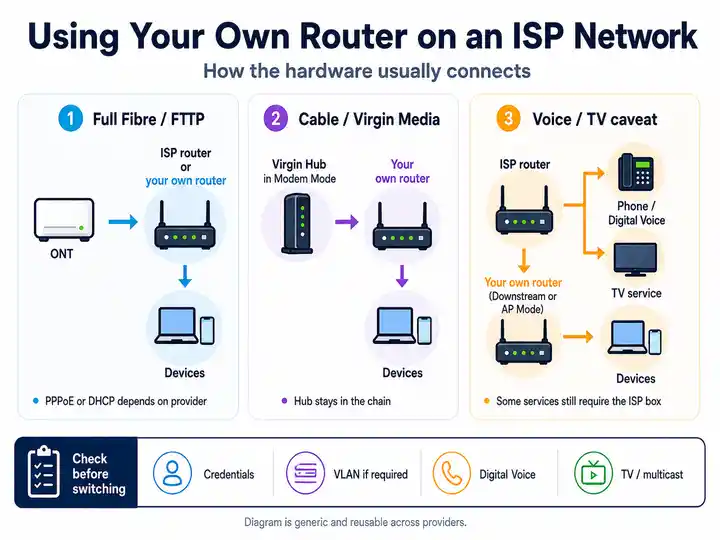
Do not assume PPPoE. Compatible routers on Sky UK commonly need support for Sky-style DHCP client authentication (often discussed as MER / DHCP Option 61) or the appropriate IPv6/DHCP behaviour for the line. Confirm the exact access type before changing WAN settings.
Low-risk route: keep the Sky Hub as the internet gateway, disable or reduce its Wi-Fi if appropriate, and run your own mesh/access points in AP mode. Direct ONT replacement is an advanced route and should be tested with the Sky Hub kept ready as a control.
Sky Talk, Sky Q networking, Pods and app-managed features can make a full hub replacement less attractive. If voice or TV behaviour changes after the swap, restore the Sky Hub before diagnosing the broadband line.
Source note: This is a Sky-hosted community discussion, not a universal Sky support recipe. Treat Option 61 examples as service-specific community guidance.
Compensation & consumer rights
For residential fixed broadband or landline services, qualifying problems can include a total loss of service that is not repaired in time, a missed engineer appointment or a delayed start to a new service.
Rates shown are the Ofcom automatic-compensation amounts applying from 1 April 2026. Eligibility, exclusions and payment timing still matter.
Optional privacy layer
A VPN is optional. It encrypts traffic between your device and the VPN server and can change the public IP address websites see. It will not fix a slow broadband line, weak Wi‑Fi, high loaded latency or a provider outage, and it can reduce peak speed.


Affiliate disclosure: LinkSpeed may earn a commission if you buy through these links, at no extra cost to you.
Compare before switching
Confirm exact-address availability, then compare reliability signals, total contract cost and the performance your household actually needs.
Useful next check
Confirm the exact-address network first. The most useful comparison is the package that is genuinely available to the property, not the fastest tier advertised nationally.