TalkTalk broadband checker
TalkTalk broadband checker for value broadband and full fibre
Use this TalkTalk broadband checker guide to understand whether TalkTalk broadband or full fibre is available at your address, then jump into router, evening-speed and Wi-Fi checks if the service feels poor.

Check your renewal price
Is TalkTalk still the best-value option?
If the price advantage has narrowed or peak-time quality is weak, compare TalkTalk with local full-fibre and cable alternatives before renewing.
TalkTalk broadband checker
Start with the TalkTalk address check, then validate real performance with wired speed, room Wi-Fi and loaded-latency tests. This keeps switching intent and existing-connection troubleshooting in one place.
- Check TalkTalk availability: Confirm whether TalkTalk fibre or full fibre packages appear available for the address before comparing value options.
- Interpret evening-speed results: Compare daytime and evening wired tests so peak-time issues are not confused with weak Wi-Fi.
- Separate package from performance: Router placement, old devices and household load can make a value package look worse than the line itself.
TalkTalk line, router and value-package isolation path
Start with a wired test at the TalkTalk router, then repeat over Wi‑Fi in problem rooms. This keeps the wholesale line result separate from router placement, older devices and peak-time household demand.
If TalkTalk slows down mainly in the evening, compare a wired speed test with the Loaded Latency Test, then run the Bufferbloat Test and Packet Loss Test when calls or games stutter.
Openreach, CityFibre or Freedom Fibre: identify the TalkTalk network layer
TalkTalk is the retail provider, but the physical network underneath can vary by postcode. Most value-led TalkTalk setups still use Openreach copper or FTTC paths, while newer full-fibre footprints can route across Openreach FTTP, CityFibre or Freedom Fibre. That matters because the wholesale layer changes upload, latency and peak-time behaviour.
Diagnosing TalkTalk router and evening-load symptoms
- Wired speed is normal: treat room-level issues as Wi‑Fi placement or device limitations first.
- Evening speed is lower: test at the same time across several nights to build a pattern.
- All devices stall or disconnect: check packet loss and router stability before switching.
TalkTalk Wi‑Fi Hub and Amazon eero status lights
TalkTalk customers may have a standard Sagemcom Wi‑Fi Hub, Wi‑Fi Hub 2, or an Amazon eero on Full Fibre packages. Check the light state before changing packages or blaming evening contention.
| Hardware light status | What it usually means | Most useful action |
|---|---|---|
| Solid white on TalkTalk Wi‑Fi Hub | The router is connected to the internet and broadcasting normally. | If performance is poor, focus on Wi‑Fi range, device capability, loaded latency or peak-time capacity rather than the basic link first. |
| Blinking amber on Wi‑Fi Hub | The router is starting up or looking for the broadband path. | Wait a few minutes, then check the grey DSL cable on FTTC or the Ethernet WAN cable from the ONT on full fibre. |
| Blinking amber and white | The router has found part of the path and is trying to connect to the internet. | Do not repeatedly reboot. If it stays like this, check TalkTalk service status and the ONT or master-socket connection. |
| Solid amber on Wi‑Fi Hub | The Wi‑Fi Hub is verifying the connection. If it stays amber, authentication or provisioning may be stuck. | Power-cycle for 30 seconds. If it remains solid amber beyond the normal wait period, check service status and contact TalkTalk with the light state. |
| Solid red on TalkTalk Wi‑Fi Hub | The router may have a critical hardware, power or startup fault rather than a normal Wi‑Fi coverage issue. | Power-cycle for 30 seconds and keep the router ventilated. If red returns, quote the light state to TalkTalk support before factory resetting. |
| Solid red on eero | The eero is offline or has lost its local gateway link to the ONT or modem. | Check the Ethernet link from the eero to the ONT or modem, then restart the ONT first and eero second. |
| Blinking blue on eero | The eero is in Bluetooth pairing or setup mode. | Open the eero app to complete setup, or wait for the pairing window to time out before testing broadband speed. |
Fix eero and ONT handshake timeout loops on Full Fibre
On Full Fibre, the Openreach ONT wall box and the eero gateway boot separately. After a short power cut, the eero can come online before the ONT has finished authenticating, leaving the eero stuck in a red no-connection state.
- Switch off the eero and the ONT power supply.
- Turn the ONT back on first and wait a full two minutes for the power and optical/broadband lights to settle into a steady ready state, usually green.
- Reconnect the Ethernet cable from the ONT to the primary eero gateway.
- Power the eero back on and wait for the eero app or LED to confirm it is online.
- If it still shows red, swap the Ethernet cable and test a laptop directly at the ONT where your provider allows this.
Switching equipment alert
Do not plan the new service around reusing a TalkTalk-supplied eero
TalkTalk describes current supplied routers and Amazon eero units as loaned equipment and may require them back when the service ends. ISP-provided eeros are also managed differently from retail units: eero warns that they may fail setup outside the supplying ISP's managed network or become unusable after a hard reset.
Have the new provider's router ready for the activation date, or use a retail eero that you own. Follow TalkTalk's return instructions rather than assuming the supplied eero can remain as a generic access point after a One Touch Switch transfer.
Optimising TalkTalk Wi‑Fi Hub and package performance
- Router placement baseline: Move the router away from TV cabinets, cordless bases and thick walls before judging package quality.
- Peak-time evidence: Value-led broadband can look acceptable by day and weaker during busy periods, so record both windows.
- Ethernet comparison: A direct Ethernet result reveals whether the access line is healthy even if upstairs Wi‑Fi is weak.
- Device rotation: Test two different devices because an older Wi‑Fi adapter can make the package look worse than it is.
Why uploads can cause TalkTalk gaming and call lag
On an asymmetric connection, a cloud backup, livestream or large file upload can fill the upstream queue. Download speed may still look healthy while loaded latency rises sharply, causing game stutter, party-chat breakup and frozen video-call audio.
- Prove the pattern: run the Bufferbloat Test while a controlled upload is active, then repeat with the upload paused.
- Reduce the immediate load: pause cloud backup, console synchronisation and CCTV uploads, or cap their upload rate where the device or application provides that control.
- Keep the line and Wi-Fi separate: repeat over Ethernet so a weak room signal is not confused with upstream queueing.
- Consider routing hardware carefully: a router with configurable queue management may help, but confirm TalkTalk line, voice and TV compatibility before replacing the supplied hub.
HomeSafe, Kids Safe and Homework Time false positives
TalkTalk HomeSafe can protect households, but it can also make a single safe service look broken while general browsing still works. Corporate VPNs, game lobbies, encrypted chat, media apps and console sign-ins are common places to check.
Full Fibre eero note: TalkTalk directs eero customers to manage web-filtering controls in the eero app rather than relying on the standard HomeSafe controls in My Account.
- Open My Account: sign in to the official TalkTalk account portal rather than changing random router settings.
- Find HomeSafe: go to Profile & Settings, then My Security Settings or the HomeSafe controls for Kids Safe, Homework Time and security filtering.
- Run a short isolation test: temporarily switch off the relevant filter, confirm the change and allow a few minutes for the setting to apply.
- Check custom or encrypted DNS: HomeSafe depends on TalkTalk's DNS. A third-party resolver, browser Secure DNS, DNS over HTTPS or DNS over TLS, private-DNS setting or VPN can send lookups elsewhere and make the filtering appear inconsistent. For a controlled test, return the affected device to automatic DNS and pause the VPN or private-DNS setting, then restore your preferred privacy settings afterwards.
- Restart the affected device: relaunch the VPN, console, app or streaming box, then repeat the exact failing action.
- Restore the level you need: if HomeSafe was responsible, re-enable only the categories you actually want blocked or add an allow rule where available.
TalkTalk TV internet channels and IGMP multicast
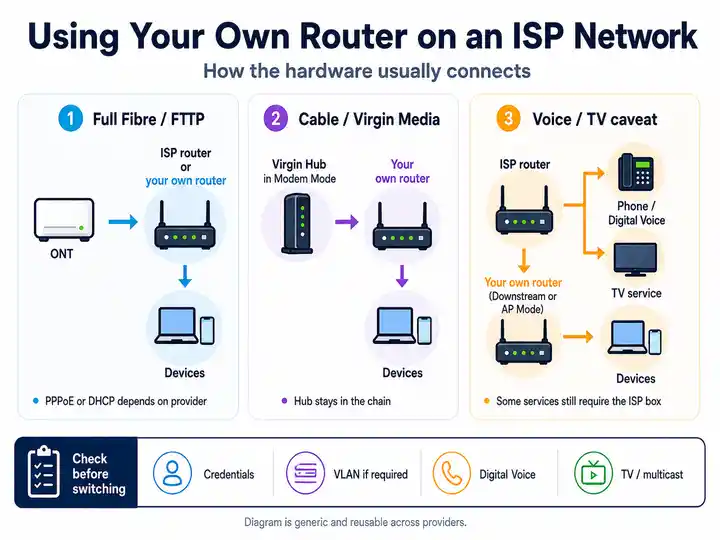
TalkTalk's own-router guidance says TalkTalk TV internet channels need Internet Group Management Protocol support. If a third-party router, managed switch or mesh layer sits between the gateway and TV box, missing multicast handling can cause internet channels to fail or become unstable even while ordinary web browsing works.
- Check the router first: confirm that IGMP is enabled and that the device supports the TalkTalk access type in use.
- For supported own-router setups: TalkTalk lists IGMP Proxy V2/V3 and IGMP Snooping as settings that should be enabled.
- Bypass extra hardware: temporarily connect the TV box directly to the primary router. If the stream stabilises, inspect the intervening switch or mesh multicast settings.
- Avoid an exact-timer diagnosis: a freeze after a few seconds is not, by itself, proof of an IGMP fault; compare direct and switched paths before changing hardware.
TalkTalk evening-speed evidence checklist
Build a simple record of line and Wi‑Fi behaviour before negotiating, upgrading or switching.
- Run one wired test at the router and one Wi‑Fi test in the affected room.
- Repeat during the busy evening window and a quieter daytime period.
- Record whether calls, games or streaming fail while uploads are active.
- Keep screenshots if the wired result remains below the expected range.
- Record router light states, eero red/blue states and HomeSafe changes when only one app or service fails.
TalkTalk fault pattern table
| TalkTalk Broadband symptom | Most useful next check | Likely fault layer |
|---|---|---|
| Only upstairs Wi‑Fi is slow | Follow the Wi‑Fi speed guide before changing package. | Router placement or coverage |
| Evening wired speed dips | Compare results with slow-at-night checks. | Peak-time capacity or routing |
| Video calls or games break during uploads | Use the upload saturation and bufferbloat checks. | Upstream queueing or upload saturation |
| Games disconnect randomly | Run the Packet Loss Test. | Packet loss or stability |
| TalkTalk Wi‑Fi Hub stays amber or amber/white | Use the TalkTalk router light key, check the DSL or ONT cable and avoid repeated reboots. | Startup, physical link or authentication |
| Amazon eero shows solid red after a power cut | Use the ONT-first restart sequence. | ONT-to-eero DHCP or gateway handshake |
| One VPN, game lobby or app fails while browsing works | Run the HomeSafe isolation test. | Network-level filtering or DNS policy |
| HomeSafe works on some devices but not others | Compare browser Secure DNS, private DNS, VPN and custom resolver settings with automatic TalkTalk DNS. | Device-level DNS bypass or eero filtering policy |
| TalkTalk TV internet channels freeze behind an own router, switch or mesh | Use the IGMP multicast checks and compare a direct router connection. | IGMP proxy, snooping or multicast path |
| Wired evening latency is poor on FTTC | Check whether CityFibre, Freedom Fibre or Openreach FTTP is available at the address. | Wholesale layer or cabinet congestion |
TalkTalk broadband issues and checks
Use this anchor when a visitor lands from a TalkTalk checker query but actually needs help with slow speeds, evening slowdowns, Wi-Fi instability or dropouts.
Check wider TalkTalk service issues first
Before changing router placement or package, check TalkTalk’s official service-status route for planned maintenance or known network issues in the area.
Open TalkTalk official service status ↗Frustration checkpoint
Is the line still below its guaranteed minimum or no longer good value?
Use repeated wired results and compare them with the Guaranteed Minimum Download Speed supplied at sign-up. TalkTalk states that, after a reported issue, a daily result below that minimum for at least three successive days may qualify for penalty-free cancellation if it cannot resolve the problem within 30 days.
Jump up to the evidence checklist ↑If the minimum term has ended, the renewal is no longer competitive or an eligible logged speed fault remains unresolved, compare the networks available at the address before arranging a transfer.
Read One Touch Switch and switching rights →Focused answers
TalkTalk Broadband Troubleshooting FAQs
These answers match the FAQ structured data in the page head.
Why does a TalkTalk eero show a solid red light after a power cut?
A solid red light means the eero is offline. Check the Ethernet link to the ONT, restart the ONT first, wait for its service lights to settle, and then restart the primary eero. If it remains red, replace the Ethernet cable and check TalkTalk service status.
Can I reuse a TalkTalk-supplied eero with another provider?
Do not plan a new connection around it. TalkTalk may require supplied eero equipment to be returned, and an ISP-managed eero is not the same as a retail unit you own. Have the new provider's router or your own retail hardware ready for activation.
Why does HomeSafe work on some devices but not others?
Browser Secure DNS, a VPN, private DNS or a manually selected third-party resolver can bypass TalkTalk DNS. Compare the affected device with automatic DNS for a controlled test, then restore the privacy settings you need.
What does TalkTalk TV need when I use my own router?
TalkTalk's own-router guidance says its TV internet channels require IGMP support. Where the router exposes the options, enable IGMP, IGMP Proxy V2/V3 and IGMP Snooping, then restart the router and TV box.
When can slow TalkTalk broadband qualify for a fee-free exit?
TalkTalk states that, after you report the issue, the actual download speed must fall below the Guaranteed Minimum Download Speed on a daily basis for at least three successive days and remain unresolved after 30 days. Eligibility depends on the applicable speed promise and fault process.
When TalkTalk Broadband troubleshooting is no longer enough
If the wired TalkTalk result is within range, focus on Wi‑Fi, router position, HomeSafe filtering and loaded latency. If eero only fails after power cuts, fix the ONT restart order before switching. If wired results remain poor at peak times or the renewal no longer looks good value, compare Openreach, CityFibre, Freedom Fibre and cable alternatives available at your address.