Hyperoptic broadband checker
Hyperoptic broadband checker for building-level full fibre
Use this Hyperoptic broadband checker guide to understand whether the service is available in your building or flat, then jump into router, upload, Wi-Fi and building-network checks if performance feels poor.

Check your renewal price
Checking alternatives in your building?
Some apartment blocks now have several fibre options. Compare Hyperoptic against other networks serving the exact building, not just the postcode.
Hyperoptic broadband checker
Start with the Hyperoptic building/address check, then validate real performance with wired upload, download, latency and Wi-Fi tests. This keeps building availability and existing-connection troubleshooting together.
- Check Hyperoptic availability: Confirm whether Hyperoptic serves the exact building, not just the surrounding postcode or street.
- Interpret flat-level results: Apartment blocks can have building-specific availability, internal cabling and neighbouring Wi-Fi congestion that affect real performance.
- Separate package from performance: A fast full-fibre estimate can still be limited by router placement, older devices or dense flat Wi-Fi.
Hyperoptic FTTB faceplate vs FTTP optical-terminal isolation
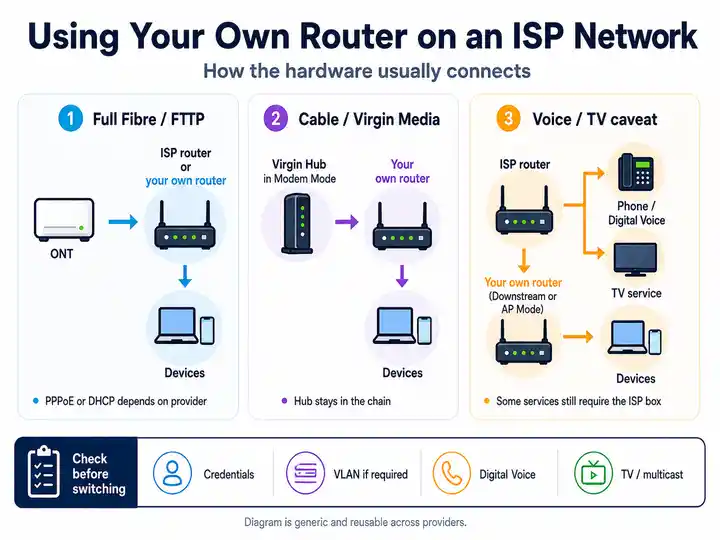
Separate the building feed from the flat network before changing Wi-Fi settings. Test Ethernet at the HyperHub, identify the physical handoff and then compare same-room Wi-Fi with the rooms behind corridors or dense internal walls.
FTTB: Ethernet wall socket from the building network
Fibre terminates in shared building equipment and the final run to the flat normally arrives through an Ethernet wall socket. Connect the HyperHub WAN port directly to that socket with a known-good cable. After a router swap, remove any unmanaged switch or end devices from the wall handoff and test only the HyperHub first.
FTTP: powered optical terminal or fibre converter
A powered optical terminal sits inside the property. Confirm its power and service indicators, then connect its active Ethernet port directly to the HyperHub WAN port. Do not unplug or bend the thin fibre lead while isolating the Ethernet path.
Router-swap clue: if a different router immediately loses service, return to one direct wall-socket-or-terminal-to-HyperHub path. A persistent red WAN state may need Hyperoptic to refresh or investigate the building port or account session; do not assume a universal MAC-address limit or an exact timed lockout.
For upload issues or video-call drops, run the upload speed test, then use the Loaded Latency Test and Packet Loss Test during calls or cloud backup.
Diagnosing Hyperoptic flat and upload-speed symptoms
- Ethernet upload is strong: focus on Wi‑Fi channel congestion or device limits.
- Only one room is poor: test hallway/wall effects and router placement.
- Upload is low over Ethernet: record repeated wired results before raising a service issue.
Hyperoptic HyperHub status lights
Hyperoptic flats may use a ZTE HyperHub, Nokia HyperHub or similar router connected to a building switch, wall faceplate or optical terminal. Check the WAN/Internet light state before changing Wi‑Fi settings.
| Hub light status | What it usually means | Most useful action |
|---|---|---|
| Solid green or orange service light | Hyperoptic says a solid green or orange service indicator generally means the service is running but is not actively exchanging data. | If broadband still feels slow, compare direct Ethernet with Wi‑Fi, channel congestion and device capability before reporting a building-feed fault. |
| Flashing service light | The service may be initialising or data may be passing through the router. Exact colours and labels vary across Zyxel, Nokia, ZTE and older Tilgin HyperHubs. | Allow the normal startup cycle to finish. If the WAN or Internet service never settles, check the wall socket or optical terminal and the red WAN cable. |
| WAN / Internet red or off | The router does not have a working upstream broadband service. | Make sure the supplied Ethernet cable is connected to the red WAN port and the Hyperoptic wall socket or optical terminal, restart the router once, then check network status if the state returns. |
| Tilgin red power light | On the older Tilgin HG2381, a red power light can mean the router is establishing a connection; a slowly flashing red power light can mean connection to Hyperoptic’s servers has failed. | Use the model-specific router guide rather than applying a ZTE, Nokia or Zyxel light meaning to the Tilgin. |
HyperHub admin panel: while connected to the router, try http://192.168.1.1 for many ZTE models or http://192.168.1.254 for some Nokia/alternate hub setups. Use the admin password printed on the hub label if it has not been changed.
Optimising Hyperoptic in flats and apartment blocks
- Upload baseline: Symmetrical packages make upload testing as important as download testing.
- Dense Wi‑Fi environment: Neighbouring networks in flats can reduce Wi‑Fi reliability even on a strong line.
- Router placement: Avoid hiding the router in cupboards or behind TV units near building-entry points.
- Wired workstations: Use Ethernet for home-office desks or cloud-backup devices if Wi‑Fi congestion is high.
- FTTB/FTTP cabling: Identify whether the HyperHub connects to an internal Cat5e/Cat6 wall faceplate or a powered optical terminal so support can separate a flat socket issue from a wider building feed fault.
High-density apartment Wi‑Fi channel congestion
If Hyperoptic is fast over Ethernet but unstable over Wi‑Fi, the issue is often channel overlap from neighbouring flats rather than a bad fibre line. Automated channel selection can place many routers on the same 5GHz block.
- Open the HyperHub manager: sign in at the hub admin page and look for WLAN or Advanced Wireless settings.
- Reduce channel width: if 5GHz is using 80MHz or 160MHz in a dense block, test a narrower 40MHz profile to reduce overlap and improve consistency.
- Try DFS channels carefully: where the router allows it, test a higher 5GHz DFS channel such as 52, 60 or 100. These can be quieter in apartment blocks, but the router may move channel if radar detection requires it.
- Keep wired for critical devices: use Ethernet for workstations, consoles or cloud-backup devices when neighbouring Wi‑Fi makes latency unpredictable.
Symmetrical upload speed can still produce loaded-latency spikes
Hyperoptic packages can provide far more upstream headroom than many asymmetric broadband services, but symmetrical speed does not make local queues impossible. A cloud backup, large file sync, CCTV upload or livestream can still occupy the available upstream capacity and delay calls or gaming traffic.
- Confirm the pattern: compare idle latency with the Loaded Latency Test while the problem upload is active.
- Pause or cap the source: stop the backup, then set its upload limit below the measured wired upstream rate and repeat the same call or game.
- Prove the local path: test the affected device by Ethernet before blaming the building feed or changing package.
- Use queue management carefully: where a compatible router exposes effective SQM or similar controls, configure it against the measured connection rather than assuming every HyperHub firmware offers the same feature set.
Hyperoptic CGN, static IPv4 and port-forwarding checks
Hyperoptic says it uses Carrier Grade NAT to conserve IPv4 addresses. That can affect inbound port forwarding, home hosting, some VPN arrangements, peer-to-peer services and gaming NAT behaviour.
- Compare the WAN address shown by the router with the public address reported by an external IP-check service.
- If the addresses differ—or the router shows an address in the shared
100.64.0.0/10range—treat CGN as a likely reason inbound forwarding cannot reach the home router. - Rule out double NAT first if another router or mesh system is connected behind the HyperHub.
- Hyperoptic currently says residential customers can buy a static IPv4 address for £5 per month through My Account support. Confirm the current charge and activation before configuring port forwarding or DMZ rules.
Do not disable security blindly: a public static address makes inbound rules possible, but it does not make every port safe to expose. Forward only the service ports you understand and keep device firmware and authentication current.
Hyperoptic upload and building-network checklist
Collect evidence that distinguishes the building feed from flat-level Wi‑Fi and device constraints.
- Run wired download and upload tests from the router.
- Repeat over Wi‑Fi in the rooms where calls or backups fail.
- Run loaded latency during a cloud upload or video call.
- Identify whether the flat uses an FTTB Cat5e/Cat6 wall faceplate or an FTTP optical terminal/CPE and photograph the cabling path.
- Record the HyperHub WAN/Internet light state before rebooting.
- Note 5GHz channel width and channel number if neighbouring apartment Wi‑Fi appears to be the bottleneck.
- Record whether neighbours or building-wide notices suggest local maintenance.
- Minimum Download Speed Guarantee: note the minimum speed in the Contract Summary, report the issue formally and follow Hyperoptic’s requested tests. Hyperoptic says the normal fix period is 30 days after the initial report. Where service speed falls below the minimum on three or more consecutive days and the issue remains unresolved within the applicable fix period, eligible customers receive a termination email explaining the fee-free exit window.
Hyperoptic fault pattern table
| Hyperoptic symptom | Most useful next check | Likely fault layer |
|---|---|---|
| Upload poor over Wi‑Fi only | Run a wired upload speed test. | Wi‑Fi or device limit |
| One room is slow | Use Wi‑Fi isolation. | Walls or congestion |
| Calls fail during backup | Run the Loaded Latency Test. | Loaded latency |
| Ethernet speed is low | Keep repeated wired results and contact support. | Building or service issue |
| HyperHub WAN or Internet light stays red or off | Use the HyperHub status light key and check the red WAN cable, flat wall socket or optical terminal link. | Building feed, wall socket, optical terminal, WAN cable or wider service issue |
| Erratic Wi‑Fi drops during busy evening hours | Use the apartment Wi‑Fi congestion checks and test 40MHz or DFS 5GHz channels. | High-density urban channel overlap |
Hyperoptic service status and escalation
Check wider Hyperoptic service issues before changing the flat setup
Check Hyperoptic service status first
Use Hyperoptic’s network-status page or the live service monitor in My Account before changing router, wall-socket or Wi-Fi settings. A building incident or planned maintenance window can make local changes misleading.
Frustration checkpoint
Stay with Hyperoptic or compare another building network?
Choose the route that matches the wired evidence instead of repeating router resets.
Build the official speed or building-fault record
Keep wired results, HyperHub or optical-terminal states and the support reference together. Under Hyperoptic’s Minimum Download Speed Guarantee, the provider gets a fix period after the issue is reported and required checks are completed.
Review the minimum-speed evidence ↓Check every network serving the exact building
When the minimum term has ended—or Hyperoptic confirms an eligible right to leave—compare Community Fibre, Openreach FTTP, Virgin Media or another live building route before ordering.
Read switching rights →When Hyperoptic troubleshooting is no longer enough
If Hyperoptic is strong over Ethernet, fix router placement, Wi‑Fi channel congestion, FTTB/FTTP cabling and device limits first. If the HyperHub stays red, the wall faceplate or optical terminal path is suspect, or wired upload/download remains poor across repeated tests, preserve the evidence and compare building-specific alternatives before renewal.
Focused answers
Hyperoptic Broadband FAQs
Use these answers after identifying whether the fault sits in the building feed, optical terminal, HyperHub, Wi-Fi layer or address configuration.
What does a red HyperHub WAN or Internet light mean?
A red or unlit WAN or Internet indicator means the router does not have a working upstream service. Check the red WAN cable, wall socket or optical terminal, restart the HyperHub once and then check Hyperoptic service status if the state returns.
How do I tell whether my connection is FTTB or FTTP?
FTTB normally feeds the flat through an Ethernet wall socket from shared building equipment. FTTP has a powered optical terminal or fibre converter inside the property. Identify that handoff before changing cables or reporting the fault.
How do I reduce Hyperoptic Wi-Fi interference in a block of flats?
Prove the wired connection first, then use the HyperHub wireless controls to test a less congested channel. Where the exact router exposes channel-width settings, a narrower 5GHz width can improve consistency at the expense of maximum headline Wi-Fi speed.
Does Hyperoptic use CGN and how can I use port forwarding?
Hyperoptic uses Carrier Grade NAT, which can affect gaming, VPNs, peer-to-peer services and home hosting. Hyperoptic currently offers residential customers a static IPv4 add-on for £5 per month; activate that before setting inbound port-forwarding rules.
When can I leave after a minimum-speed problem?
Report the issue and complete Hyperoptic’s checks. If service speed falls below the contractual minimum on three or more consecutive days and Hyperoptic cannot fix it within the applicable fix period, eligible customers receive instructions for ending the agreement without the normal termination fee.
Can a symmetrical connection still suffer bufferbloat?
Yes. Symmetrical service provides more upload headroom, but a large transfer can still fill the upstream queue. Compare idle and loaded latency, then pause or cap the upload and use effective queue management where supported.