BT broadband checker
BT broadband checker for fibre, full fibre and Smart Hub issues
Use this BT broadband checker guide to understand what BT fibre or full fibre may be available at the address, then diagnose Smart Hub, Complete Wi‑Fi, line speed, latency and connection issues before raising a fault or switching.

Check your renewal price
Is your BT monthly bill rising?
If your BT minimum term has ended, compare renewal pricing with new-customer packages and alternative full-fibre networks available at your postcode.
BT broadband checker
Start with the BT availability check, then use the Smart Hub and Stay Fast Guarantee diagnostics if you already have BT or need evidence before switching.
- Check BT availability: Confirm BT fibre or full fibre availability at the address before comparing packages.
- Check the access network: BT availability depends on the address-level Openreach record, so neighbours may not always see the same result.
- Validate the real connection: Use Ethernet, same-room Wi‑Fi and loaded-latency tests before judging the BT package.
BT line, hub and Wi‑Fi isolation path
BT faults need separating into four layers: the Openreach access line, the BT hub, any Complete Wi‑Fi disc backhaul and the device being tested. A wired result from the hub tells you far more than a single phone test from another room.
For BT lines that feel fast in quiet moments but lag during calls, gaming or uploads, run the Bufferbloat Test, the Packet Loss Test and the Loaded Latency Test before changing package.
BT service status and escalation
Check wider BT service issues before changing the local setup
Check wider BT service issues first
Before changing hub, TV or Wi-Fi settings, check BT’s official service-status checker for broadband, landline or TV incidents affecting the address.
Frustration checkpoint
Stay with BT or compare another provider?
Choose the route that matches the evidence rather than repeating the same resets.
Build the official fault record
Keep wired results, hub or ONT states and the BT case reference together. If speed to the hub remains below the personalised guarantee and BT cannot improve an eligible fault within 30 days, use the Stay Fast remedy path.
Read Stay Fast evidence ↓Compare the renewal price with local alternatives
When the minimum term has ended—or BT has confirmed an eligible right to exit—compare Openreach retailers, cable and independent full-fibre networks serving the address.
Read switching rights →BT / EE TV IPC6023 live-channel buffering
If a BT TV Box or EE TV Box shows Error IPC6023 on live IP channels such as TNT Sports or Sky Sports, do not treat it as a normal speed-test failure first. It often points to lost multicast delivery between the BT service, router and TV box.
- Bypass third-party mesh first: if the TV box is plugged into a Google Nest, Eero, Netgear, TP-Link or other mesh node, connect it directly to a yellow LAN port on the BT Smart Hub using Cat6 Ethernet.
- Check switches and multicast handling: IPTV live channels use multicast. A switch without working IGMP snooping may forward multicast traffic to ports that did not request it, creating unnecessary traffic or an unreliable TV path. Test the TV box directly on the BT hub first. If a switch remains necessary, verify IGMP Snooping V2/V3 support for the exact hardware revision. The Netgear GS305E and TP-Link TL-SG105E advertise IGMP snooping, but compatibility still depends on the complete BT TV, router and switch configuration.
- Refresh the routing order: power off the TV box, BT hub and Openreach ONT. Start the ONT first, wait for the service lights to stabilise, then start the BT hub and finally the TV box.
- Escalate correctly: if the box still fails when wired directly into the BT hub, record the channel, time, error code and whether other IP channels work before contacting BT or EE TV support.
BT Smart Hub 2 and Smart Hub Plus light status
Check the hub light before changing Wi‑Fi settings. BT Smart Hub 2, Smart Hub Plus, Smart Hub 3 and Hybrid Connect setups can use different colours, but the pattern still helps separate startup, WPS pairing, mobile backup, cabling and fixed-line faults.
| Hub light or sequence | What it usually means | Most useful action |
|---|---|---|
| Steady blue / indigo | The BT hub is online and the broadband session is authenticated. | If speed is still poor, isolate Wi‑Fi, Ethernet, Complete Wi‑Fi discs and loaded latency before reporting a line fault. |
| Solid green | The hub is starting up or reconnecting after a restart. | Give it several minutes to sync. If it never moves to the normal connected colour, check the ONT or master socket and BT service status. |
| Flashing green / firmware activity | The hub or a BT Wi‑Fi device may be syncing or applying an update. | Do not pull the power during an update-style flashing state. Wait for the cycle to complete before restarting or resetting the hub. |
| Flashing orange | The hub is trying to connect to broadband. | Wait several minutes, then check the DSL cable, filter, Openreach ONT and yellow LAN/WAN path before rebooting repeatedly. |
| Solid purple / Hybrid Connect | The hub is working through BT Hybrid Connect or mobile resilience because the main fixed-line path is unavailable. | Expect lower throughput and higher latency. Pause large downloads and check the fixed broadband line before judging the package speed. |
| Flashing purple | The hub is powered but cannot detect a working broadband cable or fixed-line path. | On Full Fibre, check that the ONT has power, PON is stable, LOS is off and the PORT or LAN light responds to the Ethernet cable. If PON is green but the port light is off, replace or reseat the Ethernet lead and confirm the correct hub WAN socket. Restart the hub once after the physical path is confirmed; do not assume an authentication fault from the purple light alone. |
| WPS flashing / white or blue discovery | WPS pairing is active or has timed out while looking for a device. This is a device-pairing state, not always a broadband outage. | Complete or cancel WPS, then test the device normally. If the hub is otherwise connected, focus on the client device rather than the line. |
| Steady red | Treat this as a service or hub failure. | Power-cycle the hub for 30 seconds, remove extension wiring where relevant and test from the master socket or ONT before raising a fault. |
Line still unstable after the hub-light check? Review escalation and switching options ↑
Optimising your BT Smart Hub 2 or Smart Hub Plus
- Hub manager check: open
192.168.1.254while connected to the BT hub and confirm the device is not stuck on the slower 2.4GHz band when a 5GHz or Wi‑Fi 6 path is available. - Smart Hub 2 versus Smart Hub Plus: older wireless clients, dense walls and non-Wi‑Fi 6 devices can hide the benefit of a newer package. Compare Ethernet against same-room Wi‑Fi before changing tariff.
- Complete Wi‑Fi disc isolation: a disc can improve coverage but still create a weak wireless backhaul. Test once through the disc, then once beside the hub, then once by Cat6 Ethernet into a yellow LAN port.
- Minimum-speed evidence: save dated wired results when speeds remain below the guaranteed range. Wi‑Fi-only evidence is weaker because BT support may ask you to prove the line itself is underperforming.
BT Digital Voice phone and battery-backup checks
BT Digital Voice depends on the broadband hub and the Openreach connection. If the hub, ONT or mains power fails, the home phone can fail at the same time as the broadband connection.
- Check the green phone port: corded phones or adapters should connect to the green phone socket on the BT Smart Hub, not a yellow Ethernet LAN port or an old wall phone socket.
- Re-pair a Digital Voice handset: use the hub’s WPS/pairing button, then select the handset’s registration option so the phone refreshes its wireless handshake with the hub.
- Check provisioning: if broadband is online but the phone says no service, restart the hub for 30 seconds and check the hub phone or telephony status in the local manager at
http://192.168.1.254. - Watch upstream congestion: robotic calls, crackle or dropped Digital Voice calls during uploads can point to packet loss or loaded latency. Run the loaded-latency and packet-loss tests while the home is busy.
- Plan for power cuts: FTTP Digital Voice needs local power for the ONT and hub. Vulnerable users or homes with poor mobile signal should ask BT about battery backup or resilience options for emergency calling.
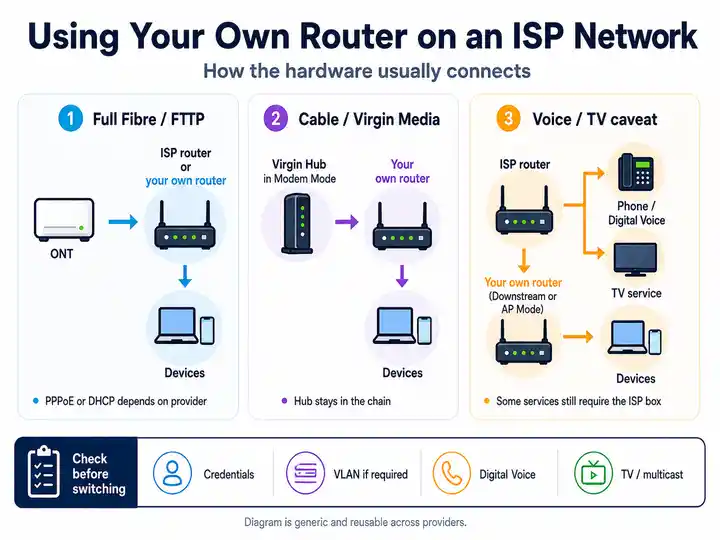
- Third-party router limitation: BT’s Digital Voice Adapter is a wireless extension that pairs to a compatible BT Smart Hub; it is not a generic Ethernet VoIP adapter. Replacing the BT hub with a private router can remove the supported BT Digital Voice path. A generic analogue telephone adapter would require a separate VoIP service and credentials and does not automatically carry the BT Digital Voice number. Confirm the supported setup with BT before replacing the hub.
BT Web Protect and Parental Controls false positives
BT Web Protect and BT Parental Controls can make one safe site, corporate VPN, console lobby or streaming login fail while ordinary browsing still works. Treat account-level filtering as a possible cause when only one service is affected.
- Check My BT: log in with your BT ID and open the security, extras or parental-controls area for the broadband account.
- Run a short isolation test: temporarily turn off Web Protect or Parental Controls, wait for the change to apply, then reload the exact app, VPN or console service that failed.
- Record the evidence: note the blocked app, device, time and any message. Turn filtering back on after the test unless you deliberately want it disabled.
- Separate filtering from line faults: if all devices are slow or the hub lights show a fault, use the hub-light and line-isolation steps instead.
BT Stay Fast Guarantee evidence and the 30-day remedy path
When a BT line appears to be below the guaranteed range, collect evidence in a way that separates the speed reaching the BT hub from Wi-Fi, mesh discs and connected-device limits.
- Open the My BT app, order confirmation or BT account area and note the personalised minimum guaranteed download speed for the service.
- Run controlled Ethernet tests from the BT hub, pause heavy traffic and follow any checks requested by BT.
- Record the hub-light state, whether the ONT or master socket was used, and whether Complete Wi-Fi discs, powerline adapters and extra switches were bypassed.
- If results remain below the threshold, log an official BT speed fault and keep the case reference and timestamps.
If the speed to the hub remains below the personalised minimum, the fault is within BT’s control and BT cannot improve it within 30 days after the official report and required checks, BT says eligible customers can leave the broadband contract without an early cancellation charge. BT states that linked phone, broadband and TV services are included, but BT Mobile is not. Check the current contract and BT’s decision before placing a replacement order.
Contract boundary check
Replacement hub or a new BT / EE broadband plan?
A fault replacement or a hardware-name change does not automatically create a new minimum term. Moving from BT onto a new EE Broadband plan can, however, create a new EE account, bill, package and contract. Before accepting an order, ask whether it is a no-contract fault replacement, a BT renewal or a move to an EE plan.
- Request the pre-contract summary: check the minimum term, service start date, monthly price and every scheduled pounds-and-pence increase.
- Check the equipment position: confirm which hub is being supplied, whether it is loaned and what must be returned if the service later ends.
- Keep the fault separate from the sale: do not accept a new package solely because a support call began with a line or hub fault. Compare the remedy and the contract offer as two separate decisions.
BT Broadband fault pattern table
| BT-specific symptom | Most useful next check | Likely fault layer |
|---|---|---|
| Hub light is blue but one room is slow | Move beside the hub, retest on 5GHz, then follow the BT Wi‑Fi speed isolation steps with the disc switched off. | Wi‑Fi coverage or disc backhaul |
| Ethernet is slow at the hub | Compare repeated wired tests with the guaranteed range and keep timestamps. | Access line, profile or provider-side issue |
| Calls or gaming lag when someone uploads | Run the Loaded Latency Test, then confirm queueing with the Bufferbloat Test while another device uploads. | Router queueing or household traffic |
| Hub drops and reconnects repeatedly | Remove extension leads, test at the master socket/ONT, record hub light changes and run a Packet Loss Test after reconnection. | Line stability, power, ONT or socket path |
| Hub is purple or running on backup | Use the BT hub light guide and pause latency-sensitive work until fixed broadband returns. | Hybrid Connect / fixed-line failover |
| BT or EE TV shows IPC6023 on live channels | Use the IPC6023 multicast checklist and test the TV box wired directly into the BT hub. | Multicast / IGMP path, switch or TV entitlement |
| Digital Voice phone says no service | Use the Digital Voice checks, confirm the green phone port and re-pair the handset. | Hub telephony, provisioning or power resilience |
| One VPN, game lobby or secure site fails | Check BT Web Protect and Parental Controls before blaming speed. | Account filter, DNS/security policy or app route |
When BT troubleshooting is no longer enough
If the hub is stable, Ethernet speed matches the guaranteed range and only Wi‑Fi is poor, fix the home-network layer first. If calls lag during uploads, run the Bufferbloat Test; if pages stall or games disconnect, run a targeted Packet Loss Test. If the hub drops, wired speed remains low or the contract price has jumped after the minimum term, compare BT renewal pricing against local full-fibre, cable and altnet alternatives.
Focused answers
BT Broadband FAQs
These answers match the FAQ structured data in the page head.
How do I fix BT TV or EE TV error IPC6023?
Connect the TV box by Ethernet directly to the BT Hub before testing through a mesh node or network switch. If a switch remains necessary, verify IGMP snooping support and configuration for that exact hardware revision.
Can I use my own router with BT Digital Voice?
BT Digital Voice uses the supported telephony path through a compatible BT Hub. Replacing it with an independent router can remove the supported BT phone service. Confirm the arrangement with BT before changing the hub; a separate VoIP service is not automatically the same as BT Digital Voice.
What does a flashing purple BT Hub light mean on Full Fibre?
It means the hub cannot detect the broadband cable or fixed-line path. Check ONT power, a stable green PON light, LOS off and the Ethernet PORT or LAN light before treating it as an authentication problem.
What is the BT Stay Fast Guarantee 30-day remedy?
Report the problem and complete BT’s requested checks. If speed to the hub remains below the personalised guarantee, the fault is within BT’s control and BT cannot improve it within 30 days, BT says eligible customers can choose to leave without an early termination charge.
Does moving from BT Broadband to an EE Broadband plan start a new contract?
Accepting a new EE Broadband plan can create a new EE account, bill and minimum term. A hardware-name change or fault replacement alone does not automatically change the contract. Read the pre-contract summary and scheduled price changes before agreeing.