Plusnet broadband checker
Plusnet broadband checker for value broadband and Hub issues
Use this Plusnet broadband checker guide to understand whether Plusnet fibre or full fibre is available at your address, then jump into Hub Two, line-speed and Wi-Fi checks if performance feels poor.

Check your renewal price
Is Plusnet still the best-value renewal?
Compare Plusnet with TalkTalk, Vodafone and local full-fibre providers before accepting a new value-broadband contract.
Plusnet broadband checker
Start with the Plusnet address check, then validate real performance with wired, Wi-Fi and loaded-latency tests. This keeps availability, package choice and existing-connection troubleshooting together.
- Check Plusnet availability: Confirm whether Plusnet broadband or full fibre appears available for the address before comparing packages.
- Interpret value-package fit: Use the expected line estimate and real wired results to decide whether the issue is price, package or performance.
- Separate package from performance: A Plusnet line can be healthy even when old devices, Hub placement or Wi-Fi coverage make rooms feel slow.
Plusnet hub and line-profile isolation path
Start with Ethernet at the Plusnet Hub, then compare same-room Wi‑Fi and the weakest room. This separates the Openreach line profile from router placement and device limitations.
If Plusnet is stable when idle but laggy during uploads, run the Bufferbloat Test, check drops with the Packet Loss Test and compare idle against busy behaviour using the Loaded Latency Test.
Diagnosing Plusnet Hub and value-package symptoms
- Ethernet matches the package estimate: treat slow rooms as Wi‑Fi or device limits.
- Speed is stable but latency jumps: test bufferbloat under upload or cloud-backup load.
- Wired speed stays low: record repeat results before reporting a line issue or switching.
Plusnet Hub One and Hub Two status lights
Before changing Wi‑Fi settings or assuming the value package is too slow, check the Hub light. Plusnet Hub One and Hub Two models share several BT-derived light meanings, but the action depends on whether the router is booting, authenticated, missing a broadband signal or reporting a hardware fault.
| Hub light status | What it usually means | Most useful action |
|---|---|---|
| Solid blue | The Hub is connected to broadband and authenticated with Plusnet. | If performance is still poor, focus on Wi‑Fi range, device limits, loaded latency or Safeguard filtering rather than the basic broadband session first. |
| Flashing orange | The Hub is working, but the broadband signal cannot be detected or the router is still trying to find the DSL/ONT path. | Check the grey DSL cable on FTTC or the red WAN Ethernet link into the Openreach ONT on full fibre. Avoid repeated reboots while it is still syncing. |
| Solid orange | The Hub is receiving a broadband signal but is not connected to the internet, often because setup, account activation or authentication has not completed. | Open a browser while connected to the Hub and follow any on-screen setup steps. If this persists, factory reset only after checking cables and service activation. |
| Pink / purple on Hub Two | The Hub may be in bridge mode, or the broadband path is not usable in the expected router mode. | If you did not intentionally enable bridge mode, disable it in Hub Manager or reset the Hub. On full fibre, also confirm the red WAN port is connected to ONT PORT1/LAN1. |
| Solid red | The Hub has detected a problem and may have a hardware or software fault. | Use the rear power button, wait 30 seconds, then restart. If red returns after a reset, record the light state and raise it with Plusnet support. |
| Solid green | The Hub is starting up. On older Hub One/BT-derived hardware this can look like an early boot state before it turns blue. | Leave it for a few minutes. If it stays green, restart once, then use the pinhole reset only after you have ruled out cabling and activation issues. |
Full Fibre orange-light check
Separate the ONT optical state from the Ethernet link
On Plusnet Full Fibre, a flashing orange Hub Two light means the Hub cannot detect the Ethernet connection to the Openreach ONT. Check the red-ended cable runs from the Hub’s red WAN port to PORT1 or LAN1 on the ONT.
PONgreen andLOSoff: the optical fibre path is present. If the ONTPORTorLANlight is still off, reseat or replace the Ethernet cable and confirm the correct ports.LOSred orPONunstable: treat this as an optical or activation fault and report the ONT light state to Plusnet.- Controlled restart: restart the Hub once after confirming the physical path. If needed, restart the ONT and allow its lights to settle before starting the Hub. A green
PONlight with an unlit Ethernet port does not prove an authentication or MAC-binding fault.
Hub Manager access: while connected to the Plusnet Hub, open http://192.168.1.254 directly in the browser address bar. The admin password is printed on the Hub card or router label if you have not changed it.
Plusnet Hub Two 2.4GHz and 5GHz band isolation
The Hub Two normally lets devices choose between its 2.4GHz and 5GHz radios. Keep the shared network name unless one device repeatedly chooses the wrong band or you need a controlled comparison.
- Connect to the Hub and open
192.168.1.254. - Select Wireless, choose Change settings and enter the Hub admin password.
- Give the 5GHz radio a distinct name, such as adding _5G, only for the test.
- Reconnect the TV, console or laptop to 5GHz while it is close enough to the Hub, then compare speed and stability.
- Use 2.4GHz for older devices or longer range where 5GHz becomes weak.
Interpret the result: a device that works on the separate 5GHz network has a band-selection or signal problem, not proof of a Plusnet line fault.
Third-party mesh and router setup without double NAT
A mesh gateway running in router mode behind the Plusnet Hub creates two DHCP and NAT layers. That can complicate console NAT, port forwarding and device discovery, but there is no supported evidence of a universal 24-hour Hub Two lease fault.
- Simplest mesh layout: leave the Plusnet Hub as the router and set the mesh to access-point or bridge mode so only the Hub provides DHCP and NAT.
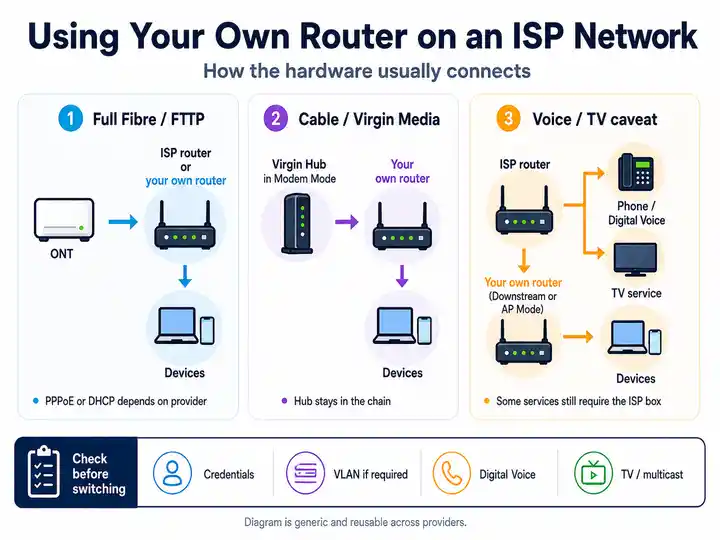
- Use your own router: Plusnet publishes connection settings for compatible equipment. Fibre services generally use PPPoE with the Plusnet broadband username and password; some equipment also asks for VLAN 101.
- Full Fibre boundary: Plusnet states that Hub Two bridge mode is not supported on Full Fibre. A compatible replacement router should connect to the ONT and use the required Plusnet connection settings.
- DMZ and reservations: a DHCP reservation can keep a mesh gateway’s local address stable, and DMZ can simplify selected inbound rules, but neither removes double NAT. Use them only when the mesh cannot run as an access point and the security implications are understood.
Optimising Plusnet Hub performance
- Wired baseline first: A value package should still hit its line estimate over Ethernet before Wi‑Fi is considered.
- Hub location: Move the Hub away from cabinets and thick internal walls to avoid blaming the provider for poor room coverage.
- Older-device check: Repeat with a newer laptop or phone if one device is unusually slow.
- Renewal comparison: If the package price has risen, compare line quality and contract cost together rather than speed alone.
Plusnet line-speed evidence checklist
Keep results that show the difference between the line profile, the Plusnet Hub and in-home Wi‑Fi.
- Run a wired speed test from the Hub and save the result.
- Repeat in the slowest room over Wi‑Fi and note distance/walls.
- Run loaded-latency testing if calls or games lag while uploads run.
- Keep screenshots if wired performance is consistently below the expected range.
- Minimum Guaranteed Speed evidence: find the personalised minimum speed in your Plusnet signup or upgrade information, then run controlled wired tests over several days with mesh/extenders bypassed. If speeds remain below the minimum, report the fault and keep dated screenshots; under the broadband speed code process, unresolved qualifying speed issues can lead to the right to leave without an early termination charge.
Plusnet is signed up to Ofcom’s voluntary speed code. Report the problem and complete the requested checks first. If Plusnet cannot resolve a qualifying speed issue after a minimum period of 30 days, discuss the option to end the broadband contract without an early termination charge; it is not triggered automatically by one low test.
Plusnet fault pattern table
| Plusnet symptom | Most useful next check | Likely fault layer |
|---|---|---|
| Only Wi‑Fi rooms are slow | Follow Wi‑Fi speed isolation. | Router placement or coverage |
| Ethernet remains low | Compare with expected speed and keep repeated test evidence. | Line profile or access issue |
| Calls lag during uploads | Run the Bufferbloat Test. | Router queueing |
| Random stalls | Run the Packet Loss Test. | Packet loss or instability |
| Hub light is orange, red, green or pink/purple | Use the Plusnet Hub light key before changing Wi‑Fi settings or switching package. | Startup, authentication, bridge mode, cabling or router fault |
| One VPN, game lobby or streaming login loops | Run the Plusnet Safeguard isolation test. | Network-level DNS filtering or device cache |
| Smart TV or console buffers while Ethernet is fine | Split Hub Two Wi‑Fi bands and connect the device to the 5GHz SSID. | Band steering, 2.4GHz congestion or device placement |
| Wired speed stays below the minimum estimate | Collect controlled Ethernet evidence over several days and raise a Plusnet line fault. | Line profile, Openreach access issue or speed-code escalation |
Plusnet broadband issues and checks
Use this anchor when a visitor lands from a Plusnet checker query but actually needs help with slow speeds, Hub Two behaviour, Wi-Fi instability or connection issues.
Check wider Plusnet service issues first
Plusnet does not expose a simple public outage checker in the same way as some providers. Use the official report-a-problem route so Plusnet can run checks on the line and confirm whether the issue is wider than the home network.
Open Plusnet official fault reporting ↗Frustration checkpoint
Stay with Plusnet or compare another provider?
Choose the route that matches the evidence rather than repeating the same Hub resets.
Build the official speed or stability case
Keep wired results, Hub and ONT lights, timestamps and the Plusnet case reference together. Use the minimum-speed process only after Plusnet has been given the opportunity to investigate.
Read minimum-speed evidence ↑Compare value and network alternatives
When the minimum term has ended—or Plusnet confirms a qualifying right to exit—compare TalkTalk, Vodafone, BT and independent full-fibre networks available at the address.
Read switching rights →Plusnet Safeguard false-positive blocks
If ordinary browsing works but a corporate VPN, Steam or Xbox matchmaking, a secure login or a streaming portal loops indefinitely, test Plusnet Safeguard before blaming raw speed or the Hub.
- Open Member Centre: sign in to the official Plusnet Member Centre with the account that manages the broadband service.
- Find Safeguard: open the account controls and select Plusnet Safeguard or the broadband security/filtering section.
- Run a short isolation test: set Safeguard to Off or Disabled, then allow time for the DNS/filtering change to apply.
- Restart the affected device: flush the local cache by restarting the PC, console, TV or streaming box, then repeat the exact failing action.
- Restore deliberately: if Safeguard was responsible, re-enable only the categories you need or manage filtering locally on the affected devices.
When Plusnet troubleshooting is no longer enough
If Plusnet performs correctly over Ethernet, fix Wi‑Fi, Hub Two band steering or device issues first. If one service fails while browsing works, test Safeguard before blaming the line. If wired speed remains below the personalised minimum or renewal value has weakened, keep dated Ethernet evidence and compare alternatives before committing to a new term.
Focused answers
Plusnet Broadband FAQs
These answers match the FAQ structured data in the page head.
Why is my Plusnet Hub Two light solid orange?
The Hub can detect a broadband signal but is not connected to the internet. Connect a device, open a browser and follow any setup or activation steps shown. Check activation and cables before factory resetting.
How do I separate 2.4GHz and 5GHz Wi-Fi on a Plusnet Hub Two?
Open 192.168.1.254, select Wireless, choose Change settings and enter the Hub admin password. Give 5GHz a distinct name only for the controlled device test.
Can Plusnet SafeGuard block a safe website or app?
Yes. A blocked or incorrectly categorised supporting domain can make a site or app fail. Add the domain to the allowed list or disable SafeGuard briefly, then restore the protection you need.
What does flashing orange mean on Plusnet Full Fibre?
The Hub cannot detect its Ethernet connection to the Openreach ONT. Check the red WAN cable, ONT PORT1 or LAN1, green PON and that LOS is off.
Can I use a third-party mesh or router with Plusnet?
Yes. Run a mesh in access-point mode behind the Hub to avoid two routing layers, or configure compatible equipment with Plusnet’s published connection settings. Hub Two bridge mode is not supported on Full Fibre.
What if Plusnet stays below my Minimum Guaranteed Speed?
Report the issue and complete Plusnet’s checks. If a qualifying speed problem cannot be resolved after a minimum period of 30 days, discuss the option to leave without an early termination charge.