Zen Internet broadband checker
Zen Internet broadband checker for availability, routing and latency
Use this Zen Internet broadband checker guide to understand whether Zen is available at your address, then jump into ping, packet-loss, routing and router-configuration checks if performance feels poor.

Check your renewal price
Is Zen still worth the premium?
Compare Zen with mainstream and altnet options if support, routing quality and renewal price no longer line up with your needs.
Zen Internet broadband checker
Start with the Zen address check, then validate real performance with ping, jitter, packet-loss and wired speed tests. This keeps availability, package choice and premium-ISP troubleshooting on one page.
- Check Zen availability: Confirm whether Zen Internet packages appear available for the address before comparing premium ISP options.
- Interpret latency results: Judge Zen on ping, jitter, packet loss and routing quality, not download speed alone.
- Separate provider from home network: Custom routers, VPNs, static-IP services and Wi-Fi can create issues that look like a Zen fault.
Zen access line, router and routing-quality isolation path
Separate the access network from Zen routing and the local router. Test Ethernet first, then compare ping, jitter and packet loss to see whether the issue is local Wi‑Fi, router configuration or upstream routing.
Static IP and VPN clue: Zen currently includes one static IP address with its residential broadband packages. If ordinary speed, ping and packet-loss tests are clean but a corporate VPN fails its handshake, check the router firewall, IPsec passthrough, path MTU and corporate allow-list policy before treating the Zen access line as faulty.
For Zen connections where speed is fine but games, VPNs or calls feel unstable, run the Ping Test, the Packet Loss Test and the Loaded Latency Test.
Diagnosing Zen latency and routing symptoms
- Low ping and no packet loss: investigate application, Wi‑Fi or device issues.
- Ping spikes under upload: test bufferbloat and router queue management.
- Packet loss appears on Ethernet: record timestamps before escalating as a line or routing fault.
Zen current router and WAN handoff path
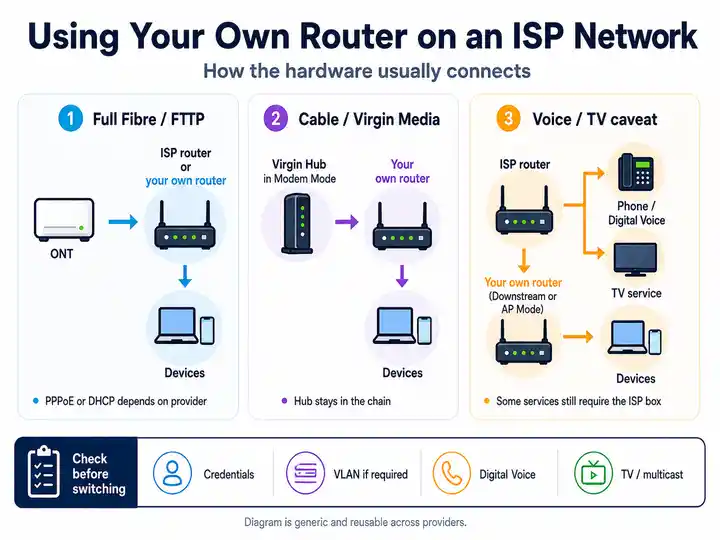
Identify the supplied hardware and access network before following a light or port guide. Zen currently uses both FRITZ!Box and eero routes, while existing customers may have older equipment.
FRITZ!Box 7530 AX: packages up to 900Mbps
Zen currently supplies the Wi-Fi 6 FRITZ!Box 7530 AX on packages up to and including 900Mbps. It has four gigabit Ethernet ports; on full fibre, the ONT connects to LAN 1 as the WAN handoff.
eero Pro 6E and eero Max 7: Full Fibre Max
Zen includes an eero Pro 6E with Full Fibre Max and offers eero Max 7 as an upgrade. The eero is managed through the app and uses a 2.5Gbps Ethernet port for the ONT handoff.
Existing and third-party hardware
Older FRITZ!Box models, eero systems, Calix equipment and customer-owned routers may use different port labels. Record the model and access network before changing PPPoE, VLAN or MTU settings.
Zen FRITZ!Box, eero and ONT status lights
Zen currently supplies FRITZ!Box or eero hardware depending on the package. On full fibre, check the ONT separately from the router so an optical or Ethernet handoff fault is not mistaken for Wi-Fi or PPPoE trouble.
| Hardware light status | What it usually means | Most useful action |
|---|---|---|
| FRITZ!Box Power / DSL solid | The router has completed startup and has an active DSL or configured WAN path. | If the internet still feels poor, move to wired ping, packet-loss, loaded-latency and application checks. |
| FRITZ!Box Power / DSL flashing | The router is starting, training a DSL line or waiting for the WAN path. | Check the grey DSL lead on FTTC or the ONT-to-LAN1 Ethernet lead on full fibre. Allow five to ten minutes after setup before escalating. |
| FRITZ!Box Info LED flashing or lit | The Info LED can show firmware activity or a user-configured event, so it is not a universal red-fault code. | Open http://fritz.box or http://192.168.178.1, check the event log and confirm what the Info LED is configured to display. |
| eero solid white | The eero is online. | If one device is slow, check its Ethernet or Wi-Fi capability, mesh placement and active household traffic. |
| eero blinking white or solid blue | Blinking white means it is starting or connecting; solid blue means it is ready for setup. | Allow startup to finish or complete setup in the eero app. Check PPPoE and VLAN details if manual ISP settings are required. |
| eero solid red | The eero is offline. | Check the ONT, Ethernet lead and Zen status, then restart the ONT and gateway once. Avoid repeated factory resets before recording the failure state. |
| ONT PON solid green, PORT / LAN active and LOS off | The optical terminal has a registered fibre signal and an Ethernet link to the router. | The incoming optical path is likely healthy. Focus on the router session, local Ethernet, Wi-Fi or upstream routing evidence. |
| ONT LOS red or PON absent | The optical terminal is not showing a normal registered fibre state. | Photograph all ONT lights and report the optical state to Zen rather than repeatedly resetting the router. |
Management route: use http://fritz.box or http://192.168.178.1 for a FRITZ!Box. Manage eero hardware through the eero app.
Optimising Zen router and latency performance
- Wired latency baseline: Run ping, jitter and packet-loss checks over Ethernet before judging Wi-Fi or Zen routing.
- Identify the supplied router: Use the FRITZ!Box guide for packages up to 900Mbps and the eero app route for Full Fibre Max hardware.
- PPPoE credentials: Customer-owned routers normally need the Zen username and password from the portal or activation details rather than a simple DHCP WAN profile.
- Correct VLAN path: Zen lists VLAN 101 for many FTTC, SoGEA and VDSL services, VLAN 911 for CityFibre, and no customer-router tag for standard Full Fibre.
- MTU check: Start with MTU 1492 on PPPoE. Use 1500 only when the complete router and access path explicitly support the larger configuration.
- Static IP and VPN checks: Confirm the assigned Zen static IP, then test firewall, passthrough, MTU and corporate allow-list rules separately.
- Loaded-latency evidence: A premium ISP path cannot prevent delay created by a saturated local upload queue, so test while the line is busy.
Custom router PPPoE, VLAN and MTU checks
Zen is custom-router friendly, but third-party routers can sit in a disconnected loop if the WAN type, credentials, VLAN tag or MTU are wrong. Treat this as a configuration check before assuming the access line has failed.
- Set WAN type to PPPoE: in Asus, Netgear, Ubiquiti, MikroTik, pfSense, OPNsense or other custom hardware, change the WAN protocol from automatic DHCP to PPPoE where Zen’s technical details require it.
- Use Zen technical details: enter the PPP username and password from the Zen customer portal or activation email. Do not guess or reuse Wi‑Fi passwords.
- Check VLAN by service type: do not blindly use one VLAN value for every Zen line. Use VLAN 101 for many FTTC/SoGEA/VDSL paths, VLAN 911 for CityFibre-based Zen services, and no customer-router VLAN tag for many Openreach full-fibre ONT installs.
- Set MTU deliberately: start with MTU 1492 for PPPoE. Only move toward 1500 when the router and path explicitly support baby-jumbo/RFC 4638 behaviour.
- Retest with the supplied router: if custom hardware fails, connect the Zen-supplied router temporarily. If that works, preserve the line evidence and fix the third-party configuration.
Separate Zen routing from local bufferbloat and upload saturation
A low idle ping does not guarantee low delay while the connection is busy. Run the same wired test at idle and during upload activity before treating a latency spike as evidence of a poor Zen route.
- Start wired: connect one capable device directly to the FRITZ!Box or gateway eero and pause other traffic for the idle baseline.
- Create a repeatable load: run the Loaded Latency Test while a controlled upload or download phase is active.
- Compare directions: a much larger upload increase often points to upstream queueing, cloud backup, cameras or file sync rather than destination routing.
- Repeat at the same time: if the result is consistently worse in the evening, keep timestamps and compare with the same wired setup earlier in the day.
- Use the supplied-router baseline: if a customer-owned firewall or router performs poorly, repeat with Zen-supplied hardware before escalating the access line.
Use the Loaded Latency Test and the Bufferbloat Test to distinguish idle routing quality from delay created under load.
Zen latency evidence checklist
Build evidence that shows whether the issue is line quality, routing, router configuration or local Wi‑Fi.
- Run ping and packet-loss tests over Ethernet.
- Repeat at the same time when the problem usually appears.
- Record whether VPN, static-IP services or custom routers are involved.
- Record the FRITZ!Box, eero and ONT light state before rebooting.
- Validate WAN mode, PPPoE username, password and service-specific VLAN settings if running custom hardware.
- Record the MTU value, starting with 1492 for PPPoE, if VPNs or specific applications fail while browsing works.
- Run loaded latency while another device uploads.
Zen Internet fault pattern table
| Zen Internet symptom | Most useful next check | Likely fault layer |
|---|---|---|
| Gaming ping fluctuates only over Wi-Fi | Repeat the Ping Test over Ethernet. | Wi-Fi interference, client roaming or local load |
| Packet loss persists on Ethernet | Repeat the Packet Loss Test and keep timestamps. | Access line, router, supplier or upstream routing |
| Ping rises sharply during uploads | Use the loaded-latency isolation path. | Router queueing or active household traffic |
| FRITZ!Box Power / DSL keeps flashing | Use the router and ONT light key and check the correct DSL or LAN1 handoff. | DSL training, ONT handoff or router setup |
| eero remains solid red | Check ONT state, cable, Zen status and manual PPPoE or VLAN settings. | WAN handoff, configuration or wider service fault |
| Third-party router refuses to connect | Verify credentials and the correct service-specific VLAN setting. | PPPoE, VLAN or WAN configuration |
| VPN connects but stalls | Use the static-IP, firewall and MTU checks. | VPN policy, firewall, path MTU or allow-list |
| Only one room or wireless device is poor | Follow Wi-Fi isolation. | Home network or client capability |
Zen service status and escalation
Check wider Zen issues before changing router or routing settings
Check Zen broadband status first
Check Zen’s official status page for supplier faults, maintenance and service alerts before changing PPPoE, VLAN, MTU or Wi-Fi settings.
Frustration checkpoint
Keep the Zen setup or compare another provider?
Choose the route that matches the wired evidence, contract position and confirmed fault status.
Build the fault record before changing provider
Keep wired results, router or ONT light photos, event-log timestamps and the Zen support reference together. Zen is signed up to Ofcom’s residential speed code; a qualifying provider-network speed fault that cannot be fixed within 30 days can create a fee-free exit right.
Review the evidence checklist ↑Compare price, support and network options
When the minimum term has ended—or Zen confirms a fee-free exit—compare Openreach, CityFibre and local full-fibre alternatives at the exact address before ordering.
Read switching rights →Static IP, corporate VPN and path-MTU checks
Zen currently includes one static IP address with its residential broadband packages. That is useful for hosting and remote access, but a VPN can still fail because of firewall policy, passthrough, path MTU or a corporate allow-list.
- Confirm the baseline: test ordinary browsing, ping and packet loss over Ethernet with the VPN disconnected.
- Confirm the assigned address: compare the Zen static IPv4 address in the portal or router with the address expected by the remote service.
- Check firewall and passthrough: review IPsec, WireGuard, OpenVPN or SSL-VPN rules on the FRITZ!Box, eero or customer-owned firewall.
- Check path MTU: start with MTU 1492 on PPPoE. A smaller VPN tunnel MTU may be required, but do not assume every handshake failure is caused by MTU.
- Give IT useful evidence: provide the public IP, timestamp, VPN error and whether the failure reproduces on a different network.
When Zen Internet troubleshooting is no longer enough
If Zen latency is clean over Ethernet, fix Wi‑Fi, PPPoE or VLAN settings, path MTU, VPN policy and customer-owned-router configuration first. If packet loss persists on wired tests with the supplied FRITZ!Box or eero, or the router and ONT lights point to an access fault, collect timestamps and event logs before comparing whether another ISP better fits your price and support priorities.
Focused answers
Zen Internet Broadband FAQs
Use these answers after identifying whether the problem sits in the access line, supplied router, customer-owned hardware, loaded traffic or VPN policy.
Which routers does Zen Internet currently supply?
Zen currently supplies the FRITZ!Box 7530 AX on packages up to and including 900Mbps. Full Fibre Max includes an eero Pro 6E, with eero Max 7 available as an upgrade. Existing customers may have different hardware.
What does a flashing Power or DSL light mean?
It normally means the FRITZ!Box is starting, training the DSL line or waiting for the WAN path. Check the DSL lead or ONT-to-LAN1 cable and allow several minutes for setup.
What VLAN ID should a custom router use?
Zen lists VLAN 101 for many FTTC, SoGEA and VDSL services, VLAN 911 for CityFibre, and no customer-router VLAN tag for standard Full Fibre. Use the settings for the exact service.
Does Zen include a static IP address?
Zen currently advertises one static IP address with its residential full-fibre and part-fibre packages. Confirm the active address in the customer portal before changing remote-access rules.
Why can a VPN stall on a Zen PPPoE line?
Firewall policy, passthrough, path MTU or a corporate allow-list can all cause this. Test without the VPN first and use 1492 as the normal PPPoE MTU starting point unless the path explicitly supports more.
Can I leave if the guaranteed speed problem is not fixed?
Zen is signed up to Ofcom’s residential Broadband Speeds Code. After a qualifying provider-network speed problem is reported and the required checks are completed, an unresolved problem after 30 days can create a fee-free exit right.