Community Fibre broadband checker
Community Fibre broadband checker for London full fibre
Use this Community Fibre broadband checker guide to understand whether Community Fibre is available at your London address, then jump into ONT, router, multi-gig and Wi-Fi checks if performance feels poor.

Check your renewal price
Compare London full-fibre alternatives
Before renewing, check whether Hyperoptic, Virgin Media, Openreach FTTP or another altnet competes at your specific London property.
Community Fibre broadband checker
Start with the Community Fibre address check, then validate real performance with capable wired devices, upload tests and latency checks. This keeps availability and full-fibre troubleshooting together.
- Check Community Fibre availability: Confirm whether Community Fibre serves the exact London address or building before comparing packages.
- Interpret multi-gig packages: Check device interfaces, cables and router ports before assuming the service is underperforming.
- Separate package from performance: Very fast symmetrical service can still be limited by old hardware, Wi-Fi or local router queueing.
Community Fibre ONT, router and device-capability isolation path
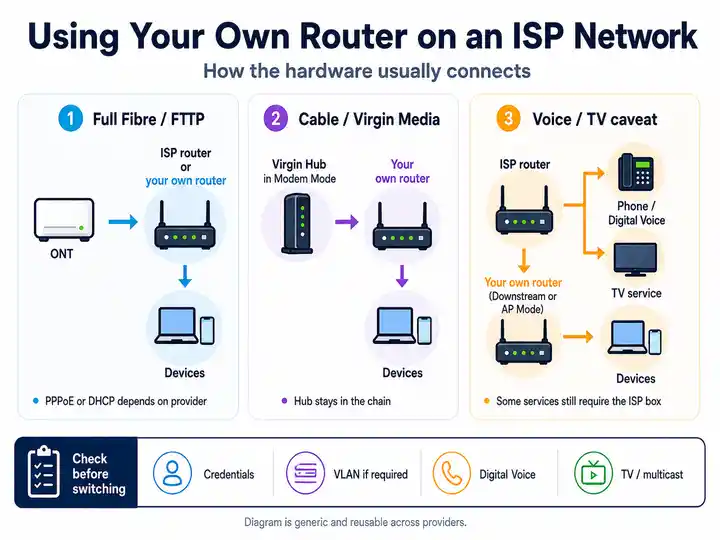
Begin with the ONT/router handoff and a wired test on a capable device, then compare Wi‑Fi and room-level results. Multi-gigabit packages require stronger hardware than basic broadband.
For Community Fibre speed that looks impressive at the router but poor on devices, run the broadband speed test, then test latency under load with the Loaded Latency Test and Bufferbloat Test.
Community Fibre current router and port map
Check the model label before following a port guide. Community Fibre’s current Wi-Fi 7 hardware differs from older Linksys Velop and Technicolor installations, and the correct LAN port matters on multi-gig packages.
Linksys M60: 1Gbps to 2.5Gbps Premium
The dual-band Wi-Fi 7 M60 has one 2.5Gbps WAN port and three 2.5Gbps LAN ports. A capable 2.5Gbps device can therefore be tested directly without passing through a 1Gbps LAN port.
Linksys M62: 5Gbps Premium
The tri-band Wi-Fi 7 M62 has one 10Gbps WAN port, one 10Gbps LAN port and two 2.5Gbps LAN ports. Use the 10Gbps LAN port for a single-device 5Gbps wired test.
Existing-customer and legacy hardware
Older installations may use Linksys Wi-Fi 5 or Wi-Fi 6 models, Technicolor hardware or different ONTs. Some legacy LAN ports are limited to 1Gbps, so use the printed model number rather than assuming every socket is multi-gig capable.
Community Fibre ONT and Linksys router status lights
Check the optical terminal and the router separately. Current M60 and M62 Wi-Fi 7 routers use a different single-light sequence from many older square Linksys models, so identify the router shape and model before interpreting the colour.
| Hardware light status | What it usually means | Most useful action |
|---|---|---|
| ONT power on, PON stable and LOS off | The optical terminal has power and is not showing a loss-of-signal alarm. | Move on to the ONT-to-router Ethernet cable, active WAN port and router status. A healthy-looking ONT does not prove every local cable or router port is working. |
| ONT LOS red or flashing | The optical terminal is not receiving the expected fibre signal. | Photograph the complete ONT light state and report it to Community Fibre. Repeated router resets will not repair an external optical fault. |
| M60 / M62 solid white | The Wi-Fi 7 parent router or child node is configured and online. | If a device is still slow, test the correct multi-gig LAN port, Ethernet path, Wi-Fi placement and device capability. |
| M60 / M62 blue | Blinking blue means the router is booting; solid blue means it is ready for setup. | Allow booting to finish. A router that remains solid blue after a reset may need setup through LinksysNOW or Community Fibre’s automatic configuration path. |
| M60 / M62 solid red | The router has no internet connection. | Check the ONT, WAN cable and Community Fibre status. Restart the ONT and parent router once in that order, then report the persistent state rather than factory-resetting repeatedly. |
| M60 / M62 blinking red or orange | Blinking red can indicate a child node disconnected from the parent or a reset sequence. Orange can indicate a failed pairing or failed router test. | Check whether the affected unit is the parent or a child node. Move a child node closer, retry pairing or run the router test again after the parent connection is stable. |
| Older square Linksys solid blue / turquoise | Many earlier Community Fibre Wi-Fi 5 and Wi-Fi 6 routers use blue or turquoise for an online state. | Use the model-specific support guide for purple, red or setup states; do not apply the Wi-Fi 7 white-light key to older hardware. |
Optimising Community Fibre full-fibre performance
- Model and port first: Check whether the router is an M60, M62, older Linksys or Technicolor model before choosing a LAN socket.
- Network card check: A standard 1Gbps interface normally produces a maximum application-level result near 940Mbps. Use a 2.5Gbps or 10Gbps adapter for higher tiers.
- Cable path: Use a known-good Cat6 or Cat6a cable for multi-gig testing. Replace suspect patch leads and bypass wall plates, docks, powerline adapters and old switches during the baseline test.
- Router location: Keep the parent router open and central, then add child nodes only where the backhaul remains strong. Wire critical rooms where practical.
- Upload testing: Test upload as well as download and compare idle with loaded latency. Symmetrical capacity provides headroom but does not prevent a busy router queue.
Fix a 940Mbps Community Fibre multi-gig port trap
A stable result around 900–940Mbps usually means one part of the path is running at 1Gbps. The current Community Fibre M60 and M62 routers include multi-gig LAN ports, so the bottleneck may sit in the chosen socket, client network card, dock, switch, wall plate or cable.
- For 1Gbps to 2.5Gbps Premium: the current M60 provides three 2.5Gbps LAN ports. Connect a capable 2.5Gbps device directly to one of those ports for the baseline.
- For 5Gbps Premium: the current M62 provides one 10Gbps LAN port and two 2.5Gbps LAN ports. Use the 10Gbps LAN port for a single-device 5Gbps test; a 2.5Gbps port cannot deliver the full package rate to one device.
- To feed several multi-gig devices: connect a suitable 10Gbps multi-gig switch to the M62’s 10Gbps LAN port, or a 2.5Gbps switch to an M60 LAN port. Do not connect the local switch to the router’s WAN socket.
- Check every hidden limit: verify the client link speed, switch specification, USB or Thunderbolt adapter, docking station, wall socket and patch cable. One 1Gbps component caps the complete path.
- Use realistic Wi-Fi expectations: Community Fibre’s own guidance shows multi-gig wired tests can reach the package rate while Wi-Fi results are materially lower. Prove the wired path before reporting a speed fault.
Community Fibre CGNAT, IPv6 and public IPv4
Community Fibre says customers who sign up or renew from 4 June 2026 are assigned CGNAT by default. That does not stop normal outbound browsing, but it prevents unsolicited inbound IPv4 connections unless a public IPv4 address is added.
- Confirm the address type: compare the router WAN IPv4 address with a public IP-check result. A different address—or a WAN address inside
100.64.0.0/10—is a strong CGNAT clue. - Rule out local double NAT: if another router or mesh system sits behind the Community Fibre router, bridge or access-point mode may be required before blaming provider CGNAT.
- Use IPv6 where the service supports it: IPv6 can give compatible devices end-to-end connectivity, subject to the router firewall and application support. It does not create an inbound IPv4 route through CGNAT.
- Add public IPv4 for IPv4 port forwarding: Community Fibre currently lists a dynamic public IPv4 add-on at £4 per month. Port-forwarding rules only become reachable after the account has a public IPv4 address.
- Do not request the wrong product: Community Fibre’s current help distinguishes the residential dynamic public IPv4 add-on from static IP addresses offered to business accounts.
Community Fibre multi-gig evidence checklist
Record whether the optical line, router port, local hardware or account configuration is limiting the service.
- Photograph the complete ONT light state, especially power, PON and LOS.
- Record the router model—M60, M62, older Linksys or Technicolor—and the exact WAN and LAN ports in use.
- Run a direct wired test on the fastest capable device and note the negotiated Ethernet link speed.
- Bypass docks, wall plates, powerline adapters and old switches if the result caps near 940Mbps.
- Run upload, download, loaded-latency and packet-loss tests separately.
- Check whether the account is on CGNAT and whether a public IPv4 add-on is required for inbound IPv4 services.
- Record whether Linksys Safe Browsing, Parental Controls or Instant-Safety is active if only one site, VPN or game service fails.
Community Fibre fault pattern table
| Community Fibre symptom | Most useful next check | Likely fault layer |
|---|---|---|
| ONT LOS light is red or flashing | Photograph the ONT light state and report the optical fault. | External fibre, splice, terminal or ONT path |
| M60 or M62 is solid red | Check ONT service lights, WAN cable and official status before resetting. | WAN path, wider outage or router state |
| M60 or M62 child node blinks red | Move the child closer, restart the parent first and retry pairing. | Mesh backhaul or node pairing |
| Wired result stays near 940Mbps | Use the multi-gig port checklist and check the negotiated client link. | 1Gbps port, NIC, dock, switch or cable |
| 5Gbps package tops out near 2.3Gbps | Confirm the test device is on the M62 10Gbps LAN port rather than one of its 2.5Gbps LAN ports. | Router-port selection or client interface |
| Latency spikes during uploads | Run the Bufferbloat Test and compare idle with loaded latency. | Router queueing or active household traffic |
| Port forwarding or remote access fails | Use the CGNAT and public IPv4 checks. | CGNAT, local double NAT or firewall |
| One site, VPN or game service fails | Run the Instant-Safety and parental-control isolation test. | Router-level filtering, DNS or application path |
Community Fibre service status and escalation
Check wider Community Fibre issues before changing the local setup
Check Community Fibre service status first
Check the official service-status indicator before changing the ONT, router or mesh layout. A wider incident can make local resets and factory defaults misleading.
Frustration checkpoint
Stay with Community Fibre or compare another London network?
Choose the route that matches the optical and wired evidence rather than repeating the same resets.
Build a clean fault or satisfaction record
Keep ONT photos, router model and port details, wired results and the support reference together. New customers should also check whether Community Fibre’s separate 30-day satisfaction guarantee applies; it is not the same as an automatic 30-day fault-cancellation right.
Review the evidence checklist ↑Check every network serving the exact address
When the minimum term has ended—or Community Fibre confirms a fee-free exit—compare Hyperoptic, Virgin Media, Openreach FTTP and other live London routes before ordering.
Read switching rights →Instant-Safety, Safe Browsing and parental-control isolation
If wired speed is healthy but one website, VPN, payment flow, console service or game launcher fails, test the router’s filtering controls before treating it as an optical-line fault.
- Current Wi-Fi 7 router: open the LinksysNOW dashboard at
https://192.168.1.1, choose Menu and check Instant-Safety. Community Fibre says this uses OpenDNS and is not supported while the router is in bridge mode. - Older square Linksys router: check Safe Browsing and Parental Controls in the Linksys app or web interface.
- Technicolor router: open
http://192.168.1.1and review the Parental Controls rules for blocked URLs, keywords, devices or schedules. - Run a controlled test: temporarily disable only the relevant setting, restart or reconnect the affected device and repeat the exact failing action.
- Restore deliberately: re-enable protection after the test unless you intentionally want it disabled. A successful isolation test identifies the filtering layer; it does not prove a TLS, ECH or building-switch inspection fault.
When Community Fibre troubleshooting is no longer enough
If Community Fibre is fast over Ethernet, focus on the correct M60 or M62 LAN port, device interfaces, cabling, mesh placement, CGNAT or public-IPv4 requirements and router filtering first. If the ONT shows a red LOS light, the parent router remains offline after one ONT-first restart, or the direct wired path remains unstable with known-good multi-gig hardware, preserve the evidence and compare support or alternatives available at the exact London address.
Focused answers
Community Fibre Broadband FAQs
Use these answers after identifying whether the fault sits in the optical feed, router model, selected LAN port, local hardware or account configuration.
What does a red LOS light mean on a Community Fibre ONT?
It means the optical terminal is not receiving the expected fibre signal. Photograph the ONT lights, avoid repeated router resets and report the optical fault to Community Fibre.
Why does my multi-gig package test at about 940Mbps?
A stable ceiling near 940Mbps normally means one component has negotiated at 1Gbps. Check the router LAN port, client network card, dock, switch, wall plate and Ethernet cable.
Which current Community Fibre router is used for multi-gig packages?
Community Fibre currently lists the Linksys M60 Wi-Fi 7 router for 1Gbps through 2.5Gbps Premium and the tri-band M62 for 5Gbps Premium. Existing customers may have older equipment.
Does Community Fibre use CGNAT and how do I get public IPv4?
Customers who sign up or renew from 4 June 2026 are assigned CGNAT by default. Community Fibre currently offers a dynamic public IPv4 add-on for £4 per month, enabling normal IPv4 port forwarding.
Does enabling IPv6 make IPv4 port forwarding work?
No. IPv6 can provide direct connectivity for compatible services, subject to firewall rules, but it does not create an inbound IPv4 route through CGNAT.
Can Instant-Safety or parental controls block one site or VPN?
Yes. Temporarily disable the relevant Safe Browsing, Parental Controls or Instant-Safety setting, retest the exact service and restore protection after the isolation test.