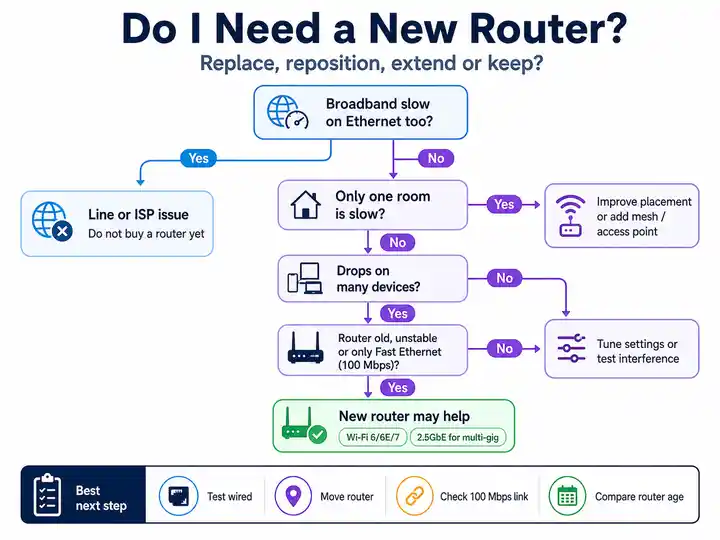
Do I need a new router? Prove whether the router is the bottleneck before spending money on replacement hardware or mesh Wi‑Fi by comparing wired speed, Wi‑Fi coverage, device load and router stability.
Router upgrade guide
Do I Need a New Router?
Use the test results to decide whether to keep the router, improve coverage, add an access point, or replace unstable hardware.
Start here
Which Router Problem Best Matches Your Results?
Choose the closest result. Each route leads to a buying decision rather than a generic “fix” list.
The cards below combine the symptom, evidence and buying decision so the same information is not repeated across separate Issue, Validate and Fix sections.
Start with the wired result. A new router is most relevant after line, placement and one-device causes have been ruled out.
Keep the router
Should I Keep the Router When Wired and Close-Range Wi-Fi Are Fast?
When Ethernet reaches the expected package speed and a modern device is fast beside the router, the router is processing traffic correctly. Replacing it is unlikely to improve one slow device or provider-side evening congestion.
Evidence to confirm: several devices are fast close to the router and the Broadband Speed Test is healthy over Ethernet.
Improve coverage
Would Better Placement, an Access Point or Mesh Fix Weak Rooms?
Healthy close-range Wi-Fi with several weak distant rooms points to coverage rather than failing router hardware. Dense walls and floors can defeat modern radios, so relocating the router or adding a correctly positioned access point may be better than replacing it.
Evidence to confirm: the same modern device is fast beside the router and consistently slow only in the weak area.
Replace unstable hardware
How Do I Know If the Router Is Overheating or Running Out of Resources?
A repeatable reboot, reset uptime, complete light cycle or loss of new connections under sustained traffic is strong evidence of router or power-supply instability. A warm case alone is not proof; the failure must match the heat, memory or connection-load pattern.
Evidence to confirm: several devices fail together, router uptime resets, or logs show memory, conntrack or thermal warnings.
Upgrade for queue management
Does Severe Bufferbloat Justify a New Router?
A router upgrade is relevant when an Ethernet loaded-latency test shows large ping increases and the existing hardware cannot provide effective SQM. A faster Wi-Fi specification alone will not solve upstream queueing or poor traffic management.
Evidence to confirm: run the Bufferbloat Test and compare idle with loaded latency before buying.
Investigate another layer
When Is Slow Ethernet Not a Router Problem?
A 100Mbps device link, one slow computer, changing ONT or DSL lights, and repeatable evening-wide slowdowns can all make the router look guilty. Replacement hardware will not repair a cable ceiling, optical fault, copper instability or provider congestion.
Will a New Router Remove Modem, ONT or Provider Latency?
A router cannot remove latency that already exists before traffic reaches it. FTTC interleaving, retransmission, mobile-network routing, ONT faults and provider backhaul delay must be diagnosed at the correct layer.
Evidence to confirm: compare idle and loaded Ethernet latency with the Ping Test, then check packet loss if responsiveness breaks up.
Will a Brand-New Router Improve Speed and Latency?
A new router only helps when the current router is the proven bottleneck. It can improve weak Wi-Fi coverage, multi-device airtime efficiency, local stability or loaded latency, but it cannot repair an external line fault, ONT problem or provider congestion.
Router Memory, Connection Tracking and Thermal Behaviour
Hardware exhaustion is proven by matching failures with connection-table pressure, unavailable memory, sustained CPU load, thermal warnings or repeated reboots. One high counter, one warm casing reading or low “free” memory value is not enough on its own.
What to check: use MemAvailable, not only free memory. A conntrack count near the configured maximum matters when it coincides with table-full messages or failed new connections.
Check logs for memory, connection-table and thermal failures
OpenWrt SSH — failure log
logread | grep -Ei 'out of memory|oom|conntrack|table full|thermal|overheat'
What to check: align log timestamps with freezes, reboots or failed connection attempts. A warning without matching instability is not proof that replacement is required.
Measure CPU and temperature behaviour
OpenWrt SSH — load and sensors
top
cat /sys/class/thermal/thermal_zone*/temp 2>/dev/null
What to check: sensor paths and units vary. Compare sustained CPU load, temperature rise and the moment service becomes unstable rather than relying on one number.
Direct ONT testing needs provider-specific setup
Some full-fibre services use DHCP, while others require PPPoE credentials, VLAN tagging or provider-specific options. Do not assume that plugging a laptop directly into the ONT will immediately work or that a failed direct test proves the ONT is faulty.
Queue management can reduce hardware acceleration
Some routers lose throughput when software SQM disables hardware offload. Choose hardware that can sustain the shaped speed you actually need rather than assuming every router advertising QoS can manage a fast full-fibre line.
Mobile gateways combine modem and router limits
On 4G or 5G broadband, a replacement gateway may improve Wi-Fi and local processing without changing mast congestion, provider routing or CGNAT behaviour.
A replacement is justified when several devices fail close to the router, the router reboots or overheats, wired performance is limited by the router, or loaded latency remains poor and the existing hardware cannot run suitable queue management.
Will a new router improve Wi-Fi range?
It may improve coverage when the existing router has weak radios or poor placement, but one router cannot overcome every wall or floor. Larger homes may need a correctly positioned access point or mesh system.
Will a new router fix slow broadband at night?
Not when the same wired device repeatedly slows at peak time with household traffic paused. That pattern points more strongly towards the broadband line or provider path.
Does bufferbloat mean I need a new router?
Only when loaded-latency tests prove the problem and the current router cannot provide effective SQM or QoS. Upload saturation can sometimes be reduced without replacing hardware.
Should I replace the router when only one device is slow?
No. A single slow device usually needs its own Wi-Fi adapter, software, driver or hardware investigated before the router is replaced.