Cuckoo broadband checker
Cuckoo broadband checker for account changes, FTTP and SoGEA
Cuckoo remains the consumer-facing broadband brand, while Onestream Ltd now runs it behind the scenes. Use this guide to check Cuckoo availability, confirm the Onestream account and billing transition, identify the physical access network, then isolate ONT, router, eero, packet-health and Wi-Fi faults.

Check the migrated account first
Confirm the contract, bill and available alternatives
Check the migrated account number, billing date, minimum term and package, then compare Cuckoo with other FTTP and broadband options available at the address.
Cuckoo broadband checker
Start with the Cuckoo address check and order summary, then identify whether the service is full fibre through an ONT or an Openreach SoGEA line through the master socket. Keep the account transition separate from physical line and Wi-Fi diagnosis.
- Check the exact address: Confirm the package, minimum speed, activation date and access technology shown before comparing alternatives.
- Identify FTTP or SoGEA: An FTTP service normally has an ONT and Ethernet handoff. SoGEA uses the Openreach copper pair without a traditional voice service and connects through the master socket.
- Check the migrated account: Record the current account number, billing date and contract term so billing-system changes are not confused with a broadband fault.
- Separate retailer from network: Cuckoo can use wholesale infrastructure including AllPoints Fibre, CityFibre and Openreach, so the equipment label and order record matter when a fault is escalated.
Account and billing transition
What changed when Onestream began running Cuckoo behind the scenes?
Brand status: Cuckoo is still marketed to consumers under the Cuckoo name and continues to accept new postcode checks. Onestream Ltd now runs the service behind the scenes. Cuckoo says existing contract, package, speed and underlying network remain the same through the transition, so diagnose a billing mismatch separately from a line, router or Wi-Fi fault.
Evidence to keep: save the previous and current account numbers, contract summary, first migrated invoice and any billing adjustment separately from ONT photographs, router states and network-test results.
Cuckoo activation, access-line and router isolation path
After a switch, check whether the line is fully active, then test Ethernet at the router and Wi‑Fi in the main rooms. This avoids confusing activation issues with ordinary room coverage problems.
Account and network note: current Cuckoo account administration is handled behind the scenes by Onestream, but the underlying network provider, router and Wi‑Fi settings should not change solely because of that account move. For diagnostics, still treat the physical ONT and wholesale line as the source of truth.
For Cuckoo lines that feel unstable after switching, run the Packet Loss Test, compare idle and busy performance with the Loaded Latency Test and confirm router queueing with the Bufferbloat Test.
Identify the Cuckoo access technology and wholesale network
Cuckoo's current terms say services can be installed through wholesale providers such as AllPoints Fibre, CityFibre or Openreach. The correct diagnosis depends on whether the property has an FTTP ONT or an Openreach SoGEA connection through the master socket.
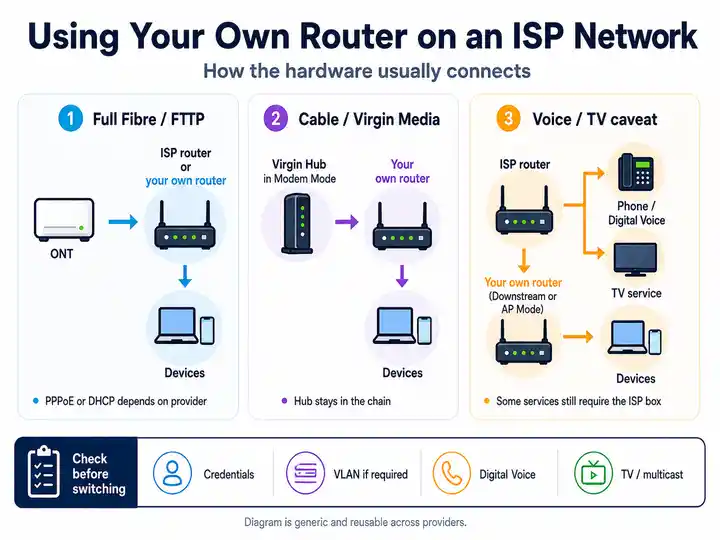
- Openreach FTTP: look for an Openreach ONT with power, PON, LOS and LAN indicators. Record the ONT model and the active Ethernet port.
- Openreach SoGEA: there may be no ONT. Check the master socket, DSL cable, filter arrangement where applicable and the supplied router's broadband or Internet state.
- CityFibre or AllPoints Fibre: photograph the ONT label and order record because engineer ownership, light labels and escalation routes can differ from Openreach.
- Account transition: Cuckoo says the Onestream billing move does not itself change the underlying network provider, so do not infer a physical migration from a new account number.
- What to record: keep the ONT or master-socket photograph, router model, WAN cable, package name and activation email before raising a fault.
Diagnosing Cuckoo activation and packet-health symptoms
- Wired speed is normal after activation: fix Wi‑Fi placement before switching again.
- Connection wobbles after migration: record packet loss and activation timing.
- All devices drop at once: test direct to the router and keep timestamps for support.
Cuckoo ONT, eero and supplied-router status lights
Existing Cuckoo installations may use an eero, while current account and price material also refers to Standard, Superstream and Superstream+ routers and mesh units. Read the model label first, then separate the access device from the router or Wi-Fi layer.
| Hardware light status | What it usually means | Most useful action |
|---|---|---|
| FTTP ONT power and PON steady green | The optical terminal has power and is registered with the underlying fibre network. | The incoming fibre path is likely healthy. Check the ONT-to-router Ethernet cable, router WAN state and client network next. |
| FTTP ONT LOS red or flashing | The ONT is not receiving a stable optical signal. | Photograph the ONT and report the fault so Cuckoo can escalate it to the correct wholesale network. Repeated router restarts will not repair the optical path. |
| eero solid white | The gateway eero is online and connected to the internet. | If one room or device is poor, focus on mesh placement, client Wi-Fi, Ethernet capability or loaded-latency tests. |
| eero solid red | The eero is offline or cannot reach the upstream internet connection. | Check the ONT or upstream router, Ethernet cable and access lights. Restart the access device first, wait for stable service lights, then restart the eero. |
| eero blinking white | The eero is starting, updating or attempting to connect. | Allow normal startup to finish. If it never settles, check the upstream access device, cable and ISP settings shown in the eero app. |
| eero blinking yellow | The eero may be detecting an unsuitable power supply. | Use the supplied eero power adapter before treating the state as a broadband-line fault. |
| Supplied router broadband or Internet light offline | The meaning depends on the Standard, Superstream or Superstream+ model and whether the service is FTTP or SoGEA. | Record the exact model and light colour, then check the ONT or master-socket path before resetting credentials or replacing hardware. |
Optimising Cuckoo broadband performance
- Service-type baseline: compare wired results with the FTTP or SoGEA package shown in the order summary rather than assuming every Cuckoo line has the same upload profile.
- Router identification: use the model label and account record before following eero, Superstream or third-party-router instructions.
- Post-switch evidence: run a wired speed, packet-loss and loaded-latency baseline soon after activation so later faults have a clean comparison point.
- Wi-Fi placement: keep the gateway central, elevated and away from TVs, dense furniture, metal objects and other radio equipment.
- eero queue control: on supported eero software, Smart Queue Management can reduce delay during heavy traffic. Test before and after because shaping can lower headline speed-test results.
- IPv6 check: enable IPv6 only as a controlled test when the underlying network supports it, then verify that affected devices receive a global IPv6 address.
Control loaded latency on eero and other Cuckoo routers
A line can pass an ordinary speed test but still add severe delay when an upload, backup or game update fills the queue. Compare quiet and busy latency over Ethernet before replacing Wi-Fi hardware or changing provider.
- Prove the trigger: run the Loaded Latency Test while the home is quiet, then repeat during the upload or download that normally causes stutter.
- Pause background traffic: stop cloud backup, camera uploads, device updates and file synchronisation, then repeat the exact call, stream or game.
- Check eero SQM where available: open
Settings>Advanced networkingand test Smart Queue Management. Keep a before-and-after result because it may trade some peak throughput for lower delay. - Do not assume every router has SQM: Standard, Superstream, Superstream+ and third-party models have different controls. Use the exact model guide rather than enabling unrelated QoS settings blindly.
- Escalate a wired fault: if loaded latency or packet loss remains poor over Ethernet with background traffic controlled, keep timestamps and repeatable results for Cuckoo support.
eero IPv6 and smart-home routing checks
eero supports global IPv6 when the upstream ISP path supplies it. Use this as a controlled diagnostic when ordinary browsing works but a corporate tool, console lobby, smart-home bridge or real-time app behaves differently from other devices.
- Enable IPv6 in the eero app: open
Settings, chooseAdvanced networking, thenIPv6and toggle it on. - Let the network restart: the eero network may briefly restart to apply the change, so avoid doing this during calls or uploads.
- Verify on the device: check whether the affected device receives an IPv6 address and whether the app or VPN behaves differently.
- Do not assume support: the underlying Cuckoo wholesale route may vary by address, so treat IPv6 as an isolation test rather than a guaranteed fix.
Cuckoo account, access and packet-health evidence checklist
Collect account and technical evidence separately so a billing transition is not mistaken for an access-line or Wi-Fi fault.
- Record the current account number, billing date, package, minimum term and first migrated invoice.
- Identify FTTP through an ONT or SoGEA through the Openreach master socket.
- Record the wholesale ONT or master-socket path, router model and all relevant status lights before power cycling.
- Run wired speed, packet-loss and loaded-latency tests at the time the problem normally appears.
- Record whether all devices fail, only Wi-Fi rooms fail, or one application is affected.
- On eero installations, note IPv6, SQM, ISP settings and the gateway WAN address before changing them.
- Keep support case numbers, engineer notes, photographs and timestamps for a formal complaint if the issue remains unresolved.
Cuckoo fault pattern table
| Cuckoo Broadband symptom | Most useful next check | Likely fault layer |
|---|---|---|
| Account number or bill changed after the Onestream move | Use the account and billing transition checks and compare the contract summary with the migrated invoice. | Account administration or billing |
| No ONT is installed and the router uses the master socket | Use the FTTP and SoGEA identification guide. | Openreach SoGEA access path |
| FTTP ONT LOS light is red | Use the ONT and router light key and photograph the wall box before contacting support. | Wholesale fibre or ONT fault |
| eero gateway stays solid red | Check the access device, Ethernet cable and ISP settings, then restart the access device before the eero. | Router WAN handoff or upstream outage |
| Calls, streaming or games fail only when the line is busy | Run the loaded-latency and queue-control checks. | Upload saturation or router queueing |
| Packet loss affects all wired devices | Run the Packet Loss Test repeatedly and keep timestamps. | Access line, wholesale network or router stability |
| Only distant Wi-Fi rooms are poor | Use Wi-Fi isolation and compare same-room results. | Router or mesh placement |
| Modern apps or devices behave differently from ordinary browsing | Use the eero IPv6 checks and verify DNS, UPnP and application policy. | IPv6, DNS, UPnP or application routing |
Cuckoo broadband issues and escalation
Use this route after separating an Onestream account or billing change from the physical access network, router, packet-health and Wi-Fi layers.
Check Cuckoo support before changing more settings
Use the official support route for account migration questions, activation checks, wholesale fault escalation and current router guidance. Record the case number before resets or equipment changes.
Open Cuckoo official support ↗Frustration checkpoint
Keep troubleshooting or compare another route?
Keep migrated bills and account records separate from wired tests, ONT or router photographs and packet-loss timestamps. Escalate the exact fault layer instead of resetting every component.
Open Cuckoo complaints process ↗Check the minimum term, early termination charge and service type before moving. A switch may not fix a fault that remains on the same physical wholesale network.
Read One Touch Switch guidance →When Cuckoo troubleshooting is no longer enough
If the service is stable over Ethernet, fix router placement, mesh coverage, loaded latency and device settings before switching. If the ONT shows red LOS, a supplied router cannot establish service, packet loss persists on wired tests, or an account or billing complaint remains unresolved, preserve the evidence and use Cuckoo's support and formal complaints routes before comparing alternatives.
Focused answers
Cuckoo Broadband FAQs
Use these answers after identifying whether the issue sits in the Onestream account transition, FTTP or SoGEA access path, ONT, supplied router, eero or complaint process.
What changed when Onestream began running Cuckoo behind the scenes?
Cuckoo says the existing contract, package, speed and underlying network remain the same. The account number and billing cycle may change, so check the migrated account and invoices separately from any technical fault.
Did the Onestream account move change my broadband network or router settings?
Cuckoo says the underlying network provider, router settings, Wi-Fi settings and equipment-support arrangements remain unchanged unless the customer receives account-specific instructions.
What does a solid red light mean on a Cuckoo eero?
A solid red eero is offline and cannot reach the internet. Check the ONT or upstream router, the Ethernet cable and the access-network lights, then restart the access device first and the eero after the service lights have settled.
What does a red LOS light mean on a Cuckoo full-fibre ONT?
A red or flashing LOS light indicates loss of optical signal. Photograph the ONT lights and report the fault so Cuckoo can escalate it to the correct wholesale fibre network instead of repeatedly restarting the Wi-Fi router.
Can I enable IPv6 on a Cuckoo eero?
Yes, when the underlying ISP path supports global IPv6. In the eero app open Settings, Advanced networking and IPv6, then enable the toggle. The eero network restarts when the setting is applied.
What should I do if Cuckoo cannot resolve an account or broadband complaint?
Raise the issue through Cuckoo support, keep bills, test results, ONT or router photographs and case numbers, then use the formal complaints process. Cuckoo's complaints code allows escalation to CISAS after a deadlock letter or when the complaint remains unresolved for six weeks.