Does Ethernet stay stable?
Yes: the fault is probably inside Wi-Fi. No: investigate the router, modem/ONT or broadband connection as well.
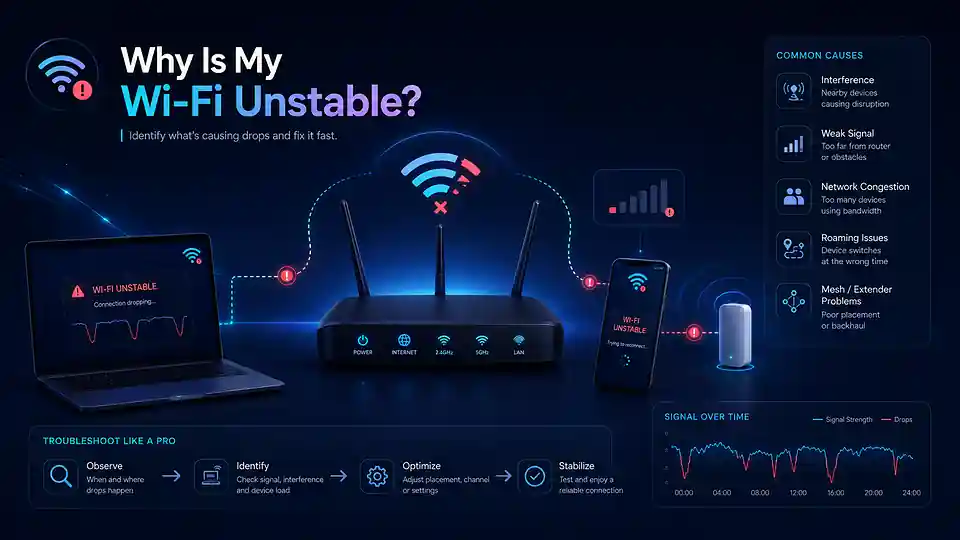
Unstable Wi-Fi is usually caused by weak signal, interference, a crowded channel, poor router placement, one-device problems or a router/mesh fault. If Ethernet stays stable while Wi-Fi drops, the broadband line is probably not the cause. Start with the quick checks below before changing provider or buying hardware.
Wi-Fi stability guide
Start with simple checks to separate weak signal, interference, one-device faults and router problems from an actual broadband-line issue. Keep Ethernet as the control before changing provider or buying new hardware.
Quick answer
Unstable Wi-Fi is usually caused by weak signal, interference, a crowded wireless channel, poor router placement, a problem with one device, or a router/mesh issue. If an Ethernet-connected device stays stable while Wi-Fi drops, the broadband line is probably not the cause.
Clear a temporary radio, driver or DHCP problem before changing settings.
If the problem disappears nearby, distance, walls or interference are stronger suspects.
Stable Ethernet points back to the wireless network; unstable Ethernet needs broader broadband diagnosis.
If only one device disconnects, focus on its adapter, driver, power saving or saved network profile.
2.4 GHz reaches further but is busier; 5 GHz is often cleaner but loses strength faster through walls.
Evening congestion, household traffic or latency under load can expose a connection that looks fine when quiet.
Useful rule: do not change several settings at once. Repeat the same test after each change so you know what actually improved stability.
Find the cause in 5 minutes
These three comparisons usually tell you whether Wi-Fi, one device, coverage or the broadband path deserves attention next.
Yes: the fault is probably inside Wi-Fi. No: investigate the router, modem/ONT or broadband connection as well.
One device: adapter, software, power saving or compatibility. Many devices: router, airtime, channel or mesh.
No: coverage or interference is likely. Yes: focus on the device, router radio, channel or configuration.
Likely causes
Start with the simple causes first. The advanced DFS, hidden-node, security and USB checks remain lower down for cases that survive the basic comparisons.
Quick reference
This combines the visible behaviour, likely bottleneck and next useful test so you can avoid random channel or router changes.
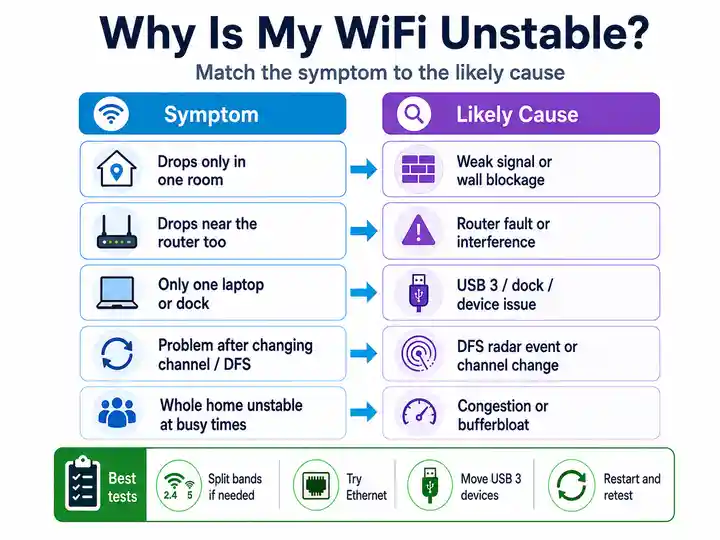
Interference, an unstable router radio, mesh roaming or a device driver can cause repeated short disconnects.
Next: run the three tests above, then change only the factor that fails.That strongly points to local wireless coverage, interference, the router radio or a wireless device rather than the incoming broadband connection.
Next: compare beside-router Wi-Fi with the problem location.Driver, power saving, a corrupt saved profile, adapter hardware or security compatibility is more likely than a whole-home fault.
Next: update the device, forget/rejoin the network and compare another device beside it.Coverage, walls, interference or weak mesh backhaul is limiting that particular route through the home.
Next: compare the same device beside the router, then improve router position.Neighbouring Wi-Fi activity, household airtime, broadband congestion or heavy uploads/downloads can all appear mainly during busy periods.
Next: use the night-time comparison below and repeat over Ethernet.Signal bars mostly show how well the device hears the router; return-path weakness, interference or collisions can still stall data.
Next: move closer, compare another device and check packet loss.Heavy traffic may be consuming wireless airtime or filling queues, so responsiveness collapses even though raw speed can still look high.
Next: run the Loaded Latency Test, then repeat over Ethernet.DFS channel changes, band steering or mesh roaming can briefly disconnect active clients without the broadband line itself failing.
Next: use the advanced DFS and roaming checks lower down.Busy-time diagnosis
Run the same check at roughly the same time over Wi-Fi and Ethernet. The comparison separates wireless airtime from broadband congestion and queueing under load.
Neighbouring channel use, more active household devices or weak-room airtime is the stronger suspect. Compare beside the router and in the affected room.
The problem extends beyond Wi-Fi. Compare the evening slowdown guide and keep repeated wired results.
Queueing or bufferbloat may be making the connection feel unstable. Run the Loaded Latency Test with the line otherwise quiet.
Test in order
Use the same device and test location where possible, changing one factor at a time so each result has a clear meaning.
Run the same speed and ping test next to the router, then in the problem room. A large change proves a location or signal-path issue.
If Ethernet remains stable, keep the investigation inside the wireless network rather than the broadband line.
One-device failures point to its adapter, driver, power saving or security compatibility. Simultaneous wireless failures point to the router or airtime.
Move it into an open, elevated position away from televisions, metal objects and enclosed furniture, then repeat the same room test.
Split the band names if possible. Compare the steadier long-range 2.4 GHz path with the faster but shorter-range 5 GHz path.
Test only the main router. If stability returns, a node was repeating a weak signal, flapping or creating a topology conflict.
Use a cleaner channel, test non-DFS 5 GHz where appropriate and try strict WPA2-AES for older devices before buying new hardware.
Measure stability, not just speed
A connection can deliver hundreds of megabits per second and still suffer packet loss, jitter or large latency spikes. Use these tests as evidence, then repeat over Ethernet to separate wireless behaviour from the broadband path.
Establish baseline latency and jitter while the connection is otherwise quiet.
Look for dropped or very late requests that a normal speed result can hide.
See whether downloads or uploads make responsiveness collapse while the line is busy.
If the wired result is clean but Wi-Fi is poor, keep the fix inside the wireless network.
Wireless evidence matrix
Use the exact behaviour to choose one controlled change.
| Wireless symptom | Likely bottleneck | Best next action |
|---|---|---|
| Full bars but data stalls | Asymmetric transmit power or hidden-node collisions. | Move closer, reposition the router, compare Ethernet and test a properly placed mesh node. |
| Calls or games drop while moving | Band steering or mesh roaming transition. | Split band names, test one band and temporarily unplug secondary nodes. |
| Smart devices disconnect | WPA3 mixed-mode compatibility or router device-density limit. | Test strict WPA2-AES on 2.4 GHz and reduce unnecessary clients. |
| 5 GHz vanishes temporarily | DFS radar channel event. | Move to a non-DFS channel if available and retest at the same time. |
| USB 3.0 dock/drive triggers laptop dropouts | Local 2.4 GHz RF noise near the client antenna. | Unplug or move the USB device/cable and compare 5 GHz or 6 GHz. |
| Microwave or appliance triggers the fault | 2.4 GHz interference. | Use 5 GHz for critical devices and choose channels 1, 6 or 11 after checking local congestion. |
| Ethernet drops too | Router, access line or provider rather than Wi-Fi alone. | Move to the internet-dropout guide. |
Signal bars are not a two-way test. A device can hear the router strongly while its own lower-power transmitter cannot return data reliably through the same obstacles.
Advanced checks
These panels preserve the technical causes without forcing every reader through them.
Brick, concrete, foil-backed insulation, underfloor heating, mirrors and metal furniture absorb or reflect wireless signals.
The router may reach the device while the device’s smaller radio cannot reliably transmit back. That creates retransmissions, stalls and misleadingly strong signal bars.
Two clients can both hear the router but not each other. They transmit at the same time, collide and retry, creating random lag or short dropouts. In practice, this can look like Wi-Fi working normally until another device starts a video call, upload or other sustained wireless activity.
Neighbouring networks and non-Wi-Fi devices can also consume the same airtime, especially on 2.4 GHz.
USB 3.0 interference near computers: some USB 3.0 drives, docks and poorly shielded cables can generate radio-frequency noise close to the 2.4 GHz band. If Wi-Fi becomes unstable only when an external drive or dock is connected, temporarily unplug it or move it and its cable away from the computer's Wi-Fi antenna, then compare the result. Testing the same device on 5 GHz or 6 GHz can help confirm whether 2.4 GHz interference is involved.
A merged network name can push devices between bands or nodes during active traffic. Weak backhaul or overlapping nodes can make the device bounce repeatedly.
Split band names for diagnosis and test the main router alone before redesigning the mesh.
Some older IoT chipsets struggle with WPA2/WPA3 mixed mode or protected management frame requirements.
A temporary strict WPA2-AES test on a separate 2.4 GHz network can confirm compatibility without weakening the main network permanently.
Private or randomised MAC addresses: modern Apple and Android devices normally use a private/randomised address per Wi-Fi network. This should not cause ordinary home Wi-Fi dropouts, but it can confuse router rules that were created against a different MAC address, such as parental controls, access-control lists or DHCP reservations. If only one device is affected, check which MAC address the router currently sees and update the rule first. Only test disabling Private Wi-Fi Address or MAC randomisation for that home network if the rule cannot be corrected, and re-enable it if the test makes no difference.
Routers using DFS channels must leave the channel when radar-like activity is detected. Active 5 GHz clients can disconnect while the router selects a new channel.
If the timing matches, test a non-DFS channel where the router and local regulations permit.
Older hubs can run out of memory or radio capacity when many cameras, plugs and bulbs connect or synchronise together.
Smart-home compatibility test — use a dedicated IoT network if your router supports one. Keep phones, laptops and other high-speed devices on the normal network, then place troublesome bulbs, plugs, sensors or cameras on a separate IoT SSID. Use 2.4 GHz when the device only supports that band, and test WPA2-AES if a legacy device fails on WPA2/WPA3 mixed mode. Do not enable guest/client isolation when the device needs local discovery or control from a phone or hub unless the router provides a specific “allow local access” option. Choose a fixed 2.4 GHz channel such as 1, 6 or 11 only after checking which is least congested in your location.
After channel, placement and device tests are complete, compare a modern router or mesh system sized for the number of clients.
Apply the result
Keep Ethernet as the control and retest the same room after each change.
Do: move the router higher and more centrally, then address walls or floors with a wired access point or properly placed mesh node.
Retest: same device in the same room.Do: update its driver or software, disable aggressive power saving, forget the network and test security compatibility.
Retest: another device beside it.Do: split band names, reduce overlapping nodes and strengthen mesh backhaul.
Retest: during an active call or game.Do: choose a cleaner fixed channel and keep 2.4 GHz on 1, 6 or 11 after checking local use.
Retest: at the same time of day.Do: test a non-DFS channel and check whether the full-band disappearances stop.
Retest: over the same multi-hour window.Do: remove unnecessary clients, wire fixed devices and compare hardware sized for the device count.
Retest: while smart devices synchronise.Escalate with evidence
Wi-Fi instability is normally local, but Ethernet and equipment evidence define the exceptions.
Ethernet drops at the same time as Wi-Fi, router or ONT service lights change, or provider status confirms a fault.
The main router radio fails even nearby, overheats or reboots, or client limits remain after placement, channel, mesh and device checks.
Focused answers
Use these answers for the common edge cases that remain after the quick comparisons above.
One-device dropouts usually point to that device's adapter, driver, power saving, saved network profile, weak antenna or security compatibility rather than a broadband line fault.
Full bars only prove the device can hear the router. Data can still stall if the device cannot transmit back through walls, has an address problem, suffers hidden-node collisions or shares an overloaded radio.
DFS channels share parts of the 5 GHz band with radar services. If a router detects radar-like activity, it must leave the channel, which can briefly disconnect 5 GHz devices.
Yes. Some older 2.4 GHz smart devices struggle with WPA2/WPA3 mixed mode or protected management frame requirements. Testing strict WPA2-AES can confirm a compatibility problem.
Treat it as a broadband problem when Ethernet devices drop at the same time as Wi-Fi, router or ONT service lights show a fault, or provider status confirms an outage.
Useful next check
Compare Ethernet with Wi-Fi and another device before changing channels or buying hardware. A wired connection that stays stable points back toward the wireless layer.