Why is Netflix buffering? Start with seven quick fixes, then match the device, symptom or exact error code to the correct Netflix and LinkSpeed comparison before changing broadband hardware.
Emergency checklist
Try These Seven Fixes Before Changing Your Broadband
Start here, then use the unified fault matrix to open the exact device instructions, test or error-code route.
Seven quick Netflix checks
Restart the device fully. Turn it off completely or unplug it briefly instead of leaving it in standby.
Force-close and update Netflix. Reopen the app and retry the same title after updates finish.
Pause downloads, uploads and VPNs. Remove household load and alternate routing during the comparison.
Try another app and device. Check whether the fault follows Netflix, one device or the whole connection.
Compare Wi-Fi with Ethernet. Use cable as the control connection where the device supports it.
Run Netflix's device network check. On a TV use Get Help > Check your Network, then compare Fast.com with LinkSpeed from the same location.
Record the exact error code. Include any numbers in brackets because Netflix variants can require different actions.
Unified interactive fault matrix
Identify Your Netflix Playback Fault Boundary
Match the device or symptom below to one likely boundary and open the single authoritative test or fix route.
📺 Smart TV or streaming stick
Symptom: The television buffers or drops resolution while a phone or laptop works in the same room.
First boundary: TV Wi-Fi reception, rear-panel antenna placement, app state, storage or firmware.
Run these beside the affected television or streaming device while the problem is happening. A test beside the router can hide a room-specific Wi-Fi fault.
Test in the same room as the affected device. A fast result beside the router does not prove that a wall-mounted television or streaming stick receives a stable connection.
Swipe horizontally to view all table columns →
Netflix quality
Resolution
Recommended stable speed
Practical household target
High definition
720p
3 Mbps or higher
Leave spare capacity for short Wi-Fi drops and other devices.
Full high definition
1080p
5 Mbps or higher
Aim above the minimum when several people use the connection.
Ultra high definition
4K
15 Mbps or higher
Use a stable wired or strong Wi-Fi path and leave substantial headroom.
Run Netflix's own network check on the affected device
TV or streaming device: from the Netflix home screen, press Back to open the menu. Select your profile icon or the menu item, then choose Get Help > Check your Network. If Get Help is not shown, open Settings. Netflix will test internet reachability and the connection speed seen by that device.
Android, iPhone or tablet: open My Netflix > Menu > App Settings > Internet Speed Test. Run the LinkSpeed test from the same device and room immediately afterwards so the two results describe the same local path.
Instant Netflix bandwidth headroom calculator
Enter a result from Fast.com or the LinkSpeed broadband speed test. The estimate uses Netflix's published minimums, but Wi-Fi drops and other devices still need spare capacity.
Speed is not the whole diagnosis. Healthy download speed can coexist with weak TV Wi-Fi, packet loss or loaded latency. If Netflix freezes when somebody starts an upload or game update, run the bufferbloat test.
These instructions replace repeated generic restart advice. Use only the block that matches the affected device.
Smart TV, Fire TV, Roku or streaming box
Fire TV: open Settings > Applications > Manage Installed Applications > Netflix > Clear Cache. Use Clear Data only if cache clearing fails because it signs you out.
Roku: use Settings > System > Power > System restart. If Power is not shown, use Settings > System > System restart, or unplug the device for at least 10 seconds.
Samsung Smart TV: with the TV on, hold the remote Power button until the television switches off and starts again. This is a cold boot, not a factory reset.
Run the Netflix Get Help > Check your Network test on the affected television, then update Netflix and device firmware, move a streaming stick away from the rear of the TV with its HDMI extender and compare Ethernet.
Could an Old TV or Streaming Box Be Causing the Buffering?
If Netflix plays normally on a newer device but buffers, feels sluggish or repeatedly reloads on an older television or streaming box, the connection may not be the bottleneck. Older smart TVs can have slower processors, less memory and storage, older Wi‑Fi chipsets, and software platforms that receive fewer firmware or Netflix app updates as they age.
Compare the same stream on a newer phone or laptop in the same room and on the same Wi‑Fi.
Update and cold-restart the TV or box first. Free storage and reinstall the Netflix app where possible.
If the newer device is smooth but the TV remains slow, the TV platform or set-top box may be the bottleneck rather than your broadband.
Do not buy new hardware if several devices buffer too. In that case, continue with the Wi‑Fi, packet-loss or broadband checks on this page.
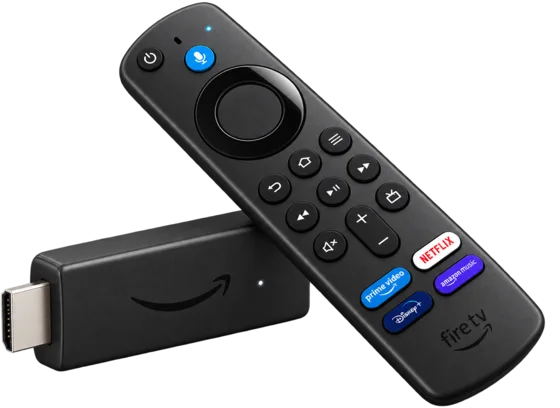
A low-cost way to modernise an older TVBefore replacing the TV, a Fire TV Stick is a relatively cheap way to bypass an ageing smart-TV platform and run supported streaming apps on newer hardware.View Fire TV Sticks on Amazon
Amazon affiliate link. LinkSpeed may earn a commission from qualifying purchases.
Yes—compare Fast.com with the speed test on the LinkSpeed main page. Run both from the same device, connection type and room within a few minutes so the comparison is meaningful.
Fast.com tests a Netflix-operated path
Fast.com measures throughput using Netflix infrastructure. It is useful for checking the path most relevant to Netflix playback.
LinkSpeed provides the general-path control
Run the LinkSpeed broadband speed test immediately before or after Fast.com. It provides a broader internet-path comparison rather than a Netflix-only destination.
Similar results point back toward the device or home
If both tests are healthy while the stream buffers, focus on the TV, app, decoder, Wi-Fi stability, packet loss or household queueing.
A repeatable Fast.com-only slowdown is evidence, not proof
If Fast.com repeatedly degrades while LinkSpeed and another streaming service stay healthy over Ethernet, record times and results. This supports a service-specific path investigation but does not by itself prove ISP peering saturation.
Use a controlled comparison: pause household traffic and VPN routing, use Ethernet where possible, run Fast.com and the LinkSpeed speed test, then repeat at the same peak and off-peak times.
Use the complete code, including any numbers in brackets. Netflix can assign different causes and fixes to variants of the same base code.
Swipe horizontally to view all table columns →
Netflix error or behaviour
What the official guidance points toward
First controlled action
UI-800-3
The base code usually means stored device information needs refreshing or a network issue stopped Netflix opening. A suffix in brackets can instead identify DRM, hardware, certification or connection-setting faults.
Search the complete code, restart the device, sign out or reset the Netflix app only as directed for that exact variant.
tvq-st-103
A network problem is preventing the device from reaching Netflix.
Reload Netflix, test another internet app, restart the device or home network, then compare Fast.com with LinkSpeed.
M7111-1331
A browser setting stopped playback, or the current Netflix plan does not support watching in a web browser.
Type netflix.com directly rather than using a bookmark, disable browser extensions and confirm the plan supports browser playback.
NW-2-5
The device cannot maintain a working connection to Netflix; the local device or network is the first boundary.
Run the device network check, restart the device and compare another app or Ethernet.
Stuck at 24%, 25%, 99% or a spinning wheel
The percentage does not prove a CDN handover or decoder fault. Stored device data or a network interruption may be preventing playback setup.
Restart the device, refresh or clear the app cache where supported, then compare another device and Ethernet.
Avoid percentage myths and unofficial reset sequences. Search the complete error in the Netflix Help Centre. For Roku, use the supported System restart menu rather than undocumented remote-button combinations.
These visible answers match the FAQ structured data in the page head.
Why does Netflix keep buffering even when my internet is fast?
A fast headline speed does not prove that the television receives stable Wi-Fi or that the connection remains responsive under load. Compare the affected device with Ethernet, another device and a loaded-latency test before changing package.
What internet speed does Netflix need?
Netflix recommends at least 3 Mbps for 720p HD, 5 Mbps for 1080p Full HD and 15 Mbps for 4K Ultra HD. Leave spare capacity for other devices and short Wi-Fi speed drops.
Why does Netflix buffer on my TV but not my phone?
The television or streaming stick may have weaker Wi-Fi reception, limited storage, outdated firmware or an app fault. Compare the same title over Ethernet and move streaming sticks away from the rear of the television.
When should I contact my broadband provider about Netflix buffering?
Contact the provider when Netflix and other services remain unstable over Ethernet with household traffic paused, or when repeatable peak-time tests show external latency, packet loss or throughput degradation beyond the home network.