Ethernet fixes the lag
Focus on placement, Wi-Fi band, interference, mesh backhaul or the PS5 wireless path.
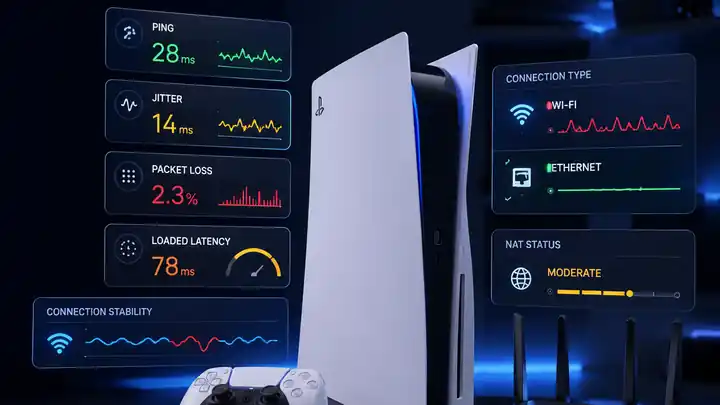
Why is my PS5 lagging? Use the fault pattern to separate PS5 Wi‑Fi instability, household bufferbloat, packet loss, NAT restrictions and external game-server routing before changing console or router settings.
PS5 gaming troubleshooting guide
Compare Wi-Fi and Ethernet, then follow the result into loaded-latency, packet-loss, NAT or external-route checks without resetting unrelated equipment.
Recommended tests
Run the same tests over Ethernet and Wi-Fi. A repeatable comparison is more useful than one unusually good or bad result.
Start here
Work through one controlled comparison at a time. This replaces separate symptom, cause, validation and fix lists that otherwise repeat the same advice.
If a phone or laptop also has unstable Wi-Fi in that position, the room, signal path or channel is a stronger suspect than the console.
If lag, jitter or packet loss disappears when wired, continue with the PS5 Wi-Fi checks. If it remains, keep router load and the external path in scope.
Stop game updates, cloud backups, CCTV uploads and large transfers. An immediate improvement points to loaded latency or household queueing.
A consistently high ping suggests distance or routing; a rapidly changing value suggests jitter; packet-loss warnings align more closely with freezes and rubber-banding.
NAT Type 3 is relevant to party chat, hosting and some peer-to-peer sessions. It is not a universal explanation for high ping.
A fault limited to one game or region is more likely destination-specific. A repeatable peak-time problem across destinations can support provider congestion or routing evidence.
Focus on placement, Wi-Fi band, interference, mesh backhaul or the PS5 wireless path.
Focus on upload saturation, router queues and SQM rather than buying a faster package immediately.
Use game telemetry and route comparisons before changing console or router settings.
Local network comparison
A high download speed does not guarantee stable wireless delivery. Weak signal, busy airtime and retries can add jitter or packet loss before traffic reaches the broadband line.
Move the PS5 out of a closed cabinet and away from large metal objects. Keep the router in an open, raised position rather than behind the television or on the floor.
Use 5 GHz when the console is close enough for a stable signal. Use 2.4 GHz for greater reach when walls make 5 GHz unreliable. Keep the band that produces the most stable repeat result.
A wireless mesh backhaul or noisy powerline link can remain the bottleneck even when the PS5 reports a strong connection. Compare a direct router Ethernet test where possible.
Household traffic and queueing
When bulk traffic fills a router queue, the PS5's small real-time packets wait behind downloads, cloud backups or camera uploads. This is loaded latency, often called bufferbloat.
If ping settles immediately, the active transfer is part of the fault.
Phone backups, cloud sync, livestreaming and CCTV can fill the upload queue even when download usage looks modest.
A large increase above idle with a stable local gateway points to queueing at the router or broadband bottleneck.
Start SQM around 90–95% of repeatable throughput and retest. Do not blindly prioritise every packet from the console because it also downloads large updates.
Console connectivity
Treat NAT and latency as separate checks. NAT Type 3 can affect party chat, hosting and some peer-to-peer sessions, but it does not normally explain Wi-Fi jitter or a distant game server.
Create a DHCP reservation using the active PS5 MAC address. This is safer than assigning an address that may collide with the router's DHCP pool.
If a second router sits behind the provider hub, use bridge or modem mode where supported, or place the secondary router in access-point mode.
Enable UPnP on only the main router and retest. Use narrow, current platform or game-specific port rules only when a documented connectivity problem remains.
Run Test Internet Connection and record NAT type, sign-in status and whether the affected game or party service works.
A private or 100.64.0.0/10 WAN address suggests upstream carrier-grade NAT that local port forwarding cannot bypass.
NAT Type 2 behind one correctly configured router is the normal target. Broad DMZ exposure removes useful firewall protection without lowering route latency.
External route diagnosis
Use these commands only after the local gateway is stable. A PlayStation web hostname is a general route comparison, not proof of the path used by a specific multiplayer server.
Replace the example address with the router's real default gateway.
ping 192.168.1.1 -tRun beside the gateway ping and compare matching timestamps.
ping 1.1.1.1 -tThe -d flag avoids reverse-DNS lookups slowing the trace.
tracert -d playstation.comThe delay starts locally. Recheck Ethernet, Wi-Fi, mesh or powerline links, cables and router load.
The local path is probably clean. Compare another destination, server region and time before escalating provider congestion or routing.
Use that game's own latency and packet-loss overlay. The multiplayer infrastructure may be separate from PSN login, store and CDN systems.
FAQ
Pause downloads, compare the same game over Ethernet and Wi-Fi, and record whether ping, jitter or packet loss changes. This separates the local wireless path from household traffic and external routing.
Yes. Weak signal, interference, busy Wi-Fi airtime, mesh backhaul and band switching can add jitter or packet loss while a short speed test still reports high throughput.
NAT Type 3 mainly affects reachability, hosting, party chat and some peer-to-peer sessions. It does not normally explain Wi-Fi jitter, server distance or loaded-latency spikes.
A large download and its acknowledgement traffic can fill router queues. Game packets then wait behind bulk traffic, increasing loaded latency until the transfer is paused or queue management controls the bottleneck.
Contact the provider when Ethernet and the local gateway remain stable but repeatable external latency or packet loss worsens across several destinations or during the same peak-time period.