Optical signal lost
Common on a separate FTTP ONT. Record the light and report it; check only for an obviously kinked or pulled fibre lead.
If your broadband keeps disconnecting, start with one Ethernet check, then match the router, ONT or line-light pattern to the failure. Apply the fix that fits the evidence rather than repeatedly restarting everything.
Broadband disconnection guide
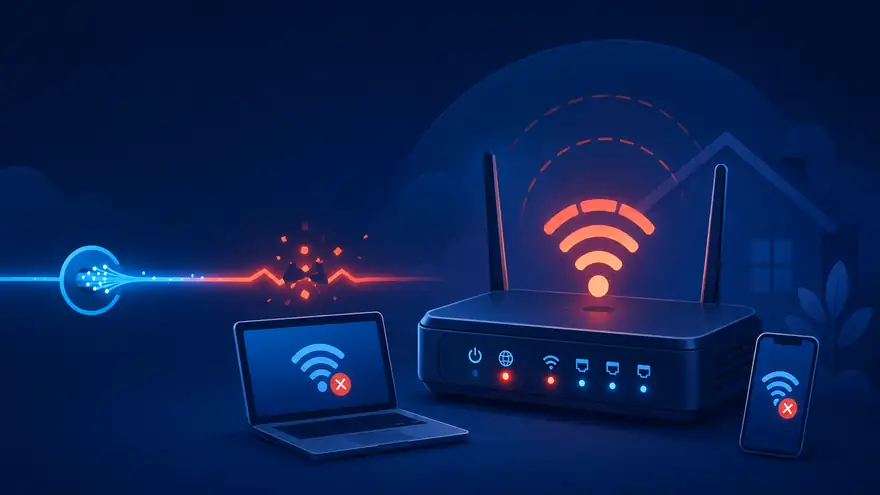
If your broadband keeps disconnecting, a Wi-Fi-only drop needs a different fix from a router reboot, red ONT light, flashing DSL light or a provider session timeout.
First step
Leave one laptop or console connected directly to the router. Choose the result that matches the next dropout.
Diagnose by symptom
Start with the symptom you can actually observe. Each subsection gives the likely fault boundary, the immediate action and the evidence that matters before you reboot or contact the provider.
When Ethernet remains online, the incoming broadband connection is still working. The fault is usually wireless interference, weak signal, mesh roaming, an extender or the router’s Wi-Fi radio. Test beside the router and remove repeaters before changing provider.
Immediate action: compare 2.4 GHz and 5 GHz, update the device wireless driver, reposition the router and test without mesh satellites or repeaters.
Ethernet and Wi-Fi share the same incoming service. A stable wired device shows that the ISP connection is still passing traffic while the wireless link fails.
A complete light cycle and reset uptime usually means the router itself restarted rather than the external line simply dropping. Common causes are unstable power, overheating, firmware failure or deteriorating hardware. Check power and ventilation before requesting a replacement.
Immediate action: use the supplied power adapter directly in a wall socket, improve airflow and record whether the router uptime resets after each event.
Ask the provider to replace the router when wired line or ONT evidence remains healthy but the router continues rebooting or losing local connections.
A red or flashing LOS light normally means the ONT has lost the optical signal. Openreach and CityFibre FTTP commonly use a separate wall-mounted ONT, while Virgin Media equipment varies by network area. Record the exact device and light state.
Immediate action: check that the fibre lead is not kinked or pulled, photograph the lights and report the result to your retail broadband provider.
Do not assume every full-fibre installation uses identical PON and LOS labels. Openreach and CityFibre ONTs differ by model, and Virgin Media HFC connections use coax rather than a normal Openreach-style ONT. Never look into or repeatedly unplug a fibre connector.
A repeatedly flashing DSL or Broadband light means the copper or FTTC link is trying to synchronise again. Internal wiring, a filter, electrical noise or an external Openreach line fault may be responsible.
Immediate action: record each retrain time, then use the master test socket where available to separate internal wiring from the incoming line.
This check applies to copper and FTTC services, not full fibre. On many NTE5 or NTE5C master sockets, a horizontal join across the faceplate identifies the removable lower section. Depending on the model, undo the retaining screws or squeeze the side clips, then gently remove the lower faceplate to expose the test socket on the right.
Connect the router through a known-good microfilter where your setup requires one and test stability over a comparable period. If the connection becomes stable at the test socket, the removable faceplate, extension wiring, an extension socket or attached equipment is likely involved. If the fault continues, keep the evidence and report the result to your provider; it narrows the fault boundary but does not prove every remaining component outside the home is fault-free.
On copper and FTTC lines, REIN (Repetitive Electrical Impulse Noise) can disturb DSL synchronisation. A useful clue is a repeatable dropout that coincides with electrical equipment switching on or off, such as heating controls or pumps, faulty power supplies, timed lighting or equipment in a neighbouring property.
Record the exact time and nearby electrical event. If the pattern repeats, report it to your provider as possible electrical-interference evidence rather than repeatedly rebooting the router.
Dynamic Line Management is the provider’s automated stability system. Repeated natural dropouts or repeated manual restarts can make the line look unstable, so DLM may reduce sync speed or add error protection. One controlled restart is enough; then leave the router powered while collecting evidence.
When the physical link remains established but internet access disappears, the fault is more likely to involve the provider session or route rather than a full DSL or fibre loss.
Immediate action: save the exact log entry and tell support that the DSL or PON link remained up while the internet session reconnected.
A PPP LCP echo timeout means the router did not receive expected keepalive replies from the provider gateway. The physical DSL or fibre link may stay established while the internet session drops and reconnects. This may involve the ISP session, provider edge equipment or a wider outage, so the provider still needs to test the underlying cause.
If websites, calls or games stall when somebody starts a cloud backup, large upload or download, the broadband line may still be connected. Upload saturation or bufferbloat can delay web, DNS, game and call traffic until applications appear to lose internet access.
Immediate action: pause the heavy transfer and run the bufferbloat test. Use SQM or QoS only when the result confirms queueing delay.
If the connection still breaks up with heavy traffic paused, run the packet loss test to separate delayed packets from packets that are actually being lost.
Before calling the provider
Each step both tests a cause and records the evidence support needs. This replaces separate diagnosis and evidence sections.
Wait for the next dropout and check whether wired and wireless devices fail together.Record: Ethernet online or offline.
Capture router Internet or Broadband lights and full-fibre PON, LOS and LAN indicators before restarting anything.Record: light state and whether uptime reset.
Test the provider router directly, remove extenders and third-party equipment, pause heavy traffic and use the Openreach master test socket on FTTC or copper—often the NTE5C test socket behind the removable faceplate.Record: stripped-back result.
Look for DSL Link Down, PPP LCP timeout, authentication failure, reboot or loss-of-signal events. When the lights stay normal, run the packet loss test before restarting anything.Record: date, time, duration, test result and exact log wording.
Tell the provider whether only Wi-Fi failed, the router rebooted, the physical line dropped or the internet session failed while the link stayed up.Record: provider reference and next action.
Avoid repeated FTTC or copper router restarts. Multiple power cycles can look like line instability to Dynamic Line Management and may make the fault harder to diagnose.
Quick visual guide
Light meanings vary by network, provider and model. Use the exact device name and record whether the light is solid, flashing or completely off.
Common on a separate FTTP ONT. Record the light and report it; check only for an obviously kinked or pulled fibre lead.
If internet still drops, investigate the Ethernet link, router and provider session rather than assuming the fibre is down.
Repeated retrains point towards copper wiring, electrical noise, filters or an external Openreach line fault.
Check power, heat, uptime and firmware before treating it as an incoming line failure.
| Common UK equipment | Normal indication | Connection problem indication | Best next check |
|---|---|---|---|
| BT Smart Hub 2 | Solid blue normally means the Hub is connected. | Flashing orange means it is connecting; a persistent red state indicates a problem. | Check whether the Hub completes its start-up sequence, then compare Ethernet and the Openreach line or ONT lights. |
| Sky Broadband Hub | The Internet status should settle into its normal connected state. | An amber, red or unlit Internet state can indicate that the Hub has not fully connected; exact colours vary by Sky Hub model. | Record which labelled light is affected and use Sky’s model-specific status test rather than relying on colour alone. |
| Virgin Media Hub 3, 4 or 5 | The normal settled display varies: Hub 3 commonly uses a white base light, while Hubs 4 and 5 use a single status light. | Persistent unusual red or flashing green states can indicate start-up, temperature or connection problems, depending on the Hub model. | Record the exact Hub number and light pattern. Virgin HFC uses coax, so Openreach-style PON and LOS guidance does not apply. |
| Openreach or CityFibre FTTP ONT | A stable PON/service light with LOS off normally indicates an optical link. | Red or flashing LOS, or a missing service/PON state, points towards the optical connection or network. | Photograph the ONT and contact the retail provider; the network operator normally does not take the end-customer fault directly. |
Do not use one provider’s colour chart for another router. BT, Sky and Virgin Media reuse colours differently, and model revisions can change the meaning.
Common questions
That pattern normally points to wireless interference, weak signal, roaming, a mesh or extender problem, or the router's Wi-Fi radio rather than the incoming broadband line.
The router is trying to establish or re-establish the copper or FTTC link. Repeated flashing followed by reconnection can indicate line noise, internal wiring, a filter problem or an external line fault.
A red or flashing LOS light usually means loss of optical signal. Check that the fibre lead is not kinked or pulled and report the light state to the broadband provider.
On FTTC and copper services, repeated restarts can look like line instability. Dynamic Line Management is the provider's automated stability system and may reduce speed to keep an apparently unstable line connected.
It means the router did not receive expected keepalive replies from the provider gateway. The DSL or fibre link may remain up while the internet session drops and reconnects.