Ping is not download speed
Throughput measures how much data moves each second. Ping measures how long a small request takes to return, so a fast package can still feel delayed.
Learn what ping measures, estimate how server distance changes latency and separate Wi-Fi, traffic-load, device, router and external-route causes without applying unrelated fixes.
Broadband response time explained
Ping is the round-trip time between your device and a destination. It explains how quickly a connection responds, while download speed describes how much data it can move.

Quick answer
A ping result includes the journey from your device to a destination and back. Lower is generally better, but the destination, route and consistency of the result matter as much as the headline number.
Throughput measures how much data moves each second. Ping measures how long a small request takes to return, so a fast package can still feel delayed.
A nearby UK server normally responds faster than a distant US server because packets must travel farther and pass through more network equipment.
Visual explainer
Ping is not created in one place. This route map shows why Wi‑Fi, ISP routing, distance and server choice all affect the final number.
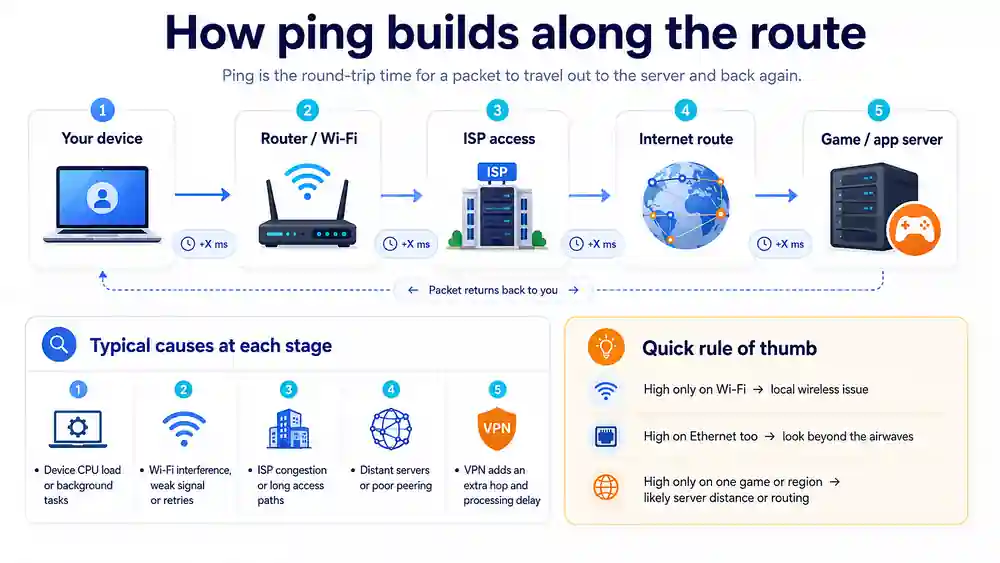
Interactive route estimator
Enter a quiet local UK ping. The estimator adds broad route-distance allowances to illustrate why overseas destinations normally respond more slowly; it is not a prediction for a specific provider, application or server.
Result-led diagnosis
This matrix combines the symptom, most likely layer and next comparison so the guide does not repeat separate Issue, Validation and Fix sections.
| What the Test Shows | Most Likely Layer | First Useful Check |
|---|---|---|
| Ping is high on Wi-Fi but normal over Ethernet | Local wireless path. Interference, retries, weak signal, crowded airtime or mesh backhaul is adding delay before traffic reaches the router. | Keep Ethernet as the control and follow our guide to improving Wi-Fi speed to isolate airtime contention. |
| A nearby server is fast but distant regions are progressively slower | Normal distance and route propagation. More fibre distance and network hops increase the round-trip time. | Use the closest suitable region and compare providers or services only against the same destination. |
| Ping rises sharply only while uploads or downloads are active | Loaded latency or queueing. Household traffic is filling a bottleneck or exposing limited gateway processing. | Pause transfers, run a loaded-latency comparison and read our specialised breakdown of what bufferbloat is to understand queue limits. |
| Only one device has high ping in the same room | Client hardware or software. VPN routing, adapter drivers, security scanning, CPU load or power saving may be adding local delay. | Compare a second device using the same destination and connection before changing the router or broadband package. |
| Only one game, service or server region is slow | Destination or external route. The wider connection may be healthy while one path, server or peering route is longer or congested. | Compare another nearby destination and use the lag-spike and route-change diagnostic guide if the issue is service-specific. |
| Nearby wired ping becomes worse at similar evening times | Shared provider capacity or routing. The pattern changes by time rather than room, device or destination distance. | Repeat the same wired test on at least two days and retain time, destination, ping, jitter, packet loss and hub status. |
Measurement matrix
Use these as practical ranges for a nearby server, not universal guarantees. Always compare the same destination and note jitter, packet loss and whether the connection is busy.
| Ping Target Range | Responsiveness Rating | Likely Real-World Behaviour | First Useful Check |
|---|---|---|---|
| Under 20 ms | Excellent | Highly responsive for gaming, voice calls, remote work and browsing when jitter and packet loss are also low. | Keep this as the nearby wired or near-router baseline and compare other rooms or destinations against it. |
| 20 to 50 ms | Generally good | Smooth for everyday browsing, streaming, calls and most online games, though competitive play may favour a lower nearby result. | Confirm the result is stable and does not rise sharply under household traffic. |
| 51 to 100 ms | Noticeable delay | Games can feel less immediate and live conversations may develop small pauses, especially if jitter also rises. | Compare a closer server, Ethernet and a quiet-line test before treating the broadband line as faulty. |
| Over 100 ms | High latency | Input delay, speech overlap, remote-desktop lag and slower interactive responses become increasingly apparent. | Identify whether the result is caused by destination distance, VPN routing, Wi-Fi, load or persistent nearby wired delay. |
Controlled comparison
Keep the destination and test method consistent and change one variable at a time so every comparison removes a possible cause.
Run the same test while the connection is quiet. Record ping, jitter, packet loss, device, connection type and destination.
Repeat beside the router. A large improvement points towards local Wi-Fi range, interference, walls or mesh placement.
A direct cable removes wireless airtime and retries. If Ethernet is healthy, keep the investigation inside the home Wi-Fi path.
Run separate download and upload load checks. A sharp rise under traffic points towards queueing, upload saturation or gateway processing.
Use nearby and distant servers. Increasing delay with distance is normal; one unusually poor route may be destination or peering-specific.
Pause cloud sync, updates, uploads and VPN routing, then use the result paths below instead of changing several settings together.
Use the result
This guide stays focused on baseline response time, route distance and interpretation. Detailed wireless, queue-management and provider actions remain in their specialist pages.
Keep Ethernet as the clean control and follow our guide to improving Wi-Fi speed to isolate airtime contention, coverage and mesh placement.
Pause background traffic and use the loaded latency measurement guide. Then read our specialised breakdown of what bufferbloat is to understand queue limits.
Averages can hide unstable delivery. Use the jitter explainer and evaluator to measure variation between packet response times.
High ping is not the only cause of lag. Use the packet-loss explainer and classifier when tests show dropped data.
Compare another server region and disable VPN routing. A route-specific problem does not prove the local broadband connection is faulty.
Collect matching evidence from several nearby destinations and times. Include ping, jitter, packet loss, device, hub status and household traffic before contacting the provider.
Detailed answers
Use these answers to distinguish response time from speed, understand practical ranges and decide when the result supports a local or provider investigation.
Ping is the round-trip response time between your device and a destination, measured in milliseconds. Lower and repeatable results usually feel more responsive.
For a nearby server, under 20 ms is excellent, 20 to 50 ms is generally good, 51 to 100 ms is noticeable and repeated results above 100 ms can affect real-time use.
Package speed controls throughput, while ping is influenced by physical distance, routing, local wireless retries, traffic queues and server processing.
Contact the provider when elevated ping remains over Ethernet, affects several nearby destinations and devices, persists with household traffic paused, or follows a repeatable time-of-day pattern.
No. It illustrates how broad regional distance can add latency. It does not inspect your provider network, perform a traceroute or identify the live peering path to a specific service.
Useful next check
The useful baseline is a quiet wired result to a known destination. Compare that with Wi-Fi and loaded conditions to separate distance, routing and queueing.