
1. Select the exact address
Do not rely on postcode alone. Flats, new builds and neighbouring homes can show different Sky options.
Check whether Sky broadband is available at your address, then compare expected speeds with your current download, upload, ping and Wi‑Fi performance.
Sky broadband availability
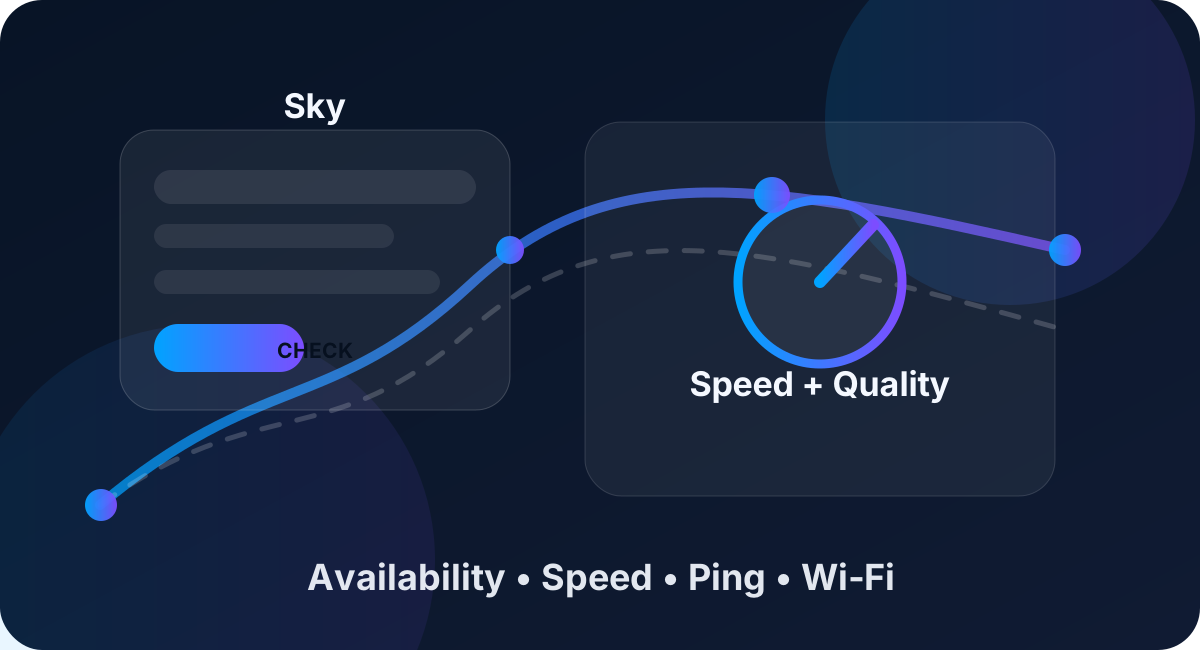
Use Sky’s official checker for live address-level availability, then use LinkSpeed to test your current download speed, upload speed, ping and jitter. If you are looking for an outage, check Sky service status first.
Quick answer
For new service availability, use Sky’s broadband checker with your exact address. For faults or outages, use Sky service status. For performance, run a LinkSpeed test and compare download, upload, ping and jitter.
These are different checks. Availability tells you what you might be able to order. Status tells you whether Sky knows about a fault. A speed test tells you how your current connection is actually performing.
Sky checker process
Do not rely on postcode alone. Flats, new builds and neighbouring homes can show different Sky options.
Look for FTTP or Full Fibre, not just a generic fibre label.

Record expected download, upload and any minimum speed information shown during ordering.

Check contract length, setup costs, install timing, router terms and old-provider charges.
Sky can be a good option where it offers the speed and package you need, but the result should be judged against your actual use: gaming, streaming, working from home, upload tasks and room-by-room Wi‑Fi coverage.
| Checker result | What it means | What to do next |
|---|---|---|
| Sky Full Fibre available | Sky may be able to supply FTTP at your address. | Compare upload speed, router options, install date and total contract cost. |
| Part fibre only | The final link may still use copper, so speeds can depend on line length and condition. | Compare other full fibre, cable or 5G options. |
| High speed shown, but current Wi‑Fi is poor | Your bottleneck may be in-home Wi‑Fi, not the provider package. | Test beside the router and in the problem room. |
| No Sky availability | Sky may not serve the exact address yet, or records may not match the property. | Check other providers and wider fibre availability. |
Sky status
If your broadband has suddenly stopped working or speeds have collapsed, check Sky service status before switching. If Sky shows no known issue, test Wi‑Fi and Ethernet separately to see whether the problem is your router, room coverage or line.
Test before switching
Download affects streaming and updates. Upload matters for calls, cloud backups, livestreaming and sending files.

If Ethernet is fast but Wi‑Fi is slow, switching provider may not fix the real problem.

Gaming, video calls and remote work need low ping, low jitter and low packet loss as well as speed.
Use Sky’s official broadband checker and enter your exact postcode and address. Then compare the speed estimate with your current LinkSpeed result so you know whether switching is likely to improve speed or stability.
Use Sky’s official service checker for live fault information. If there is no known issue, test your connection over Ethernet and Wi‑Fi before reporting a problem.
Availability can depend on exact address records, Openreach routing, flat records, duct or pole routes, landlord permissions and rollout stage.
Only after testing. If Ethernet is slow and your current package is weak, switching may help. If only Wi‑Fi is slow in one room, router placement or mesh Wi‑Fi may be a better first fix.